
Tip & Trick
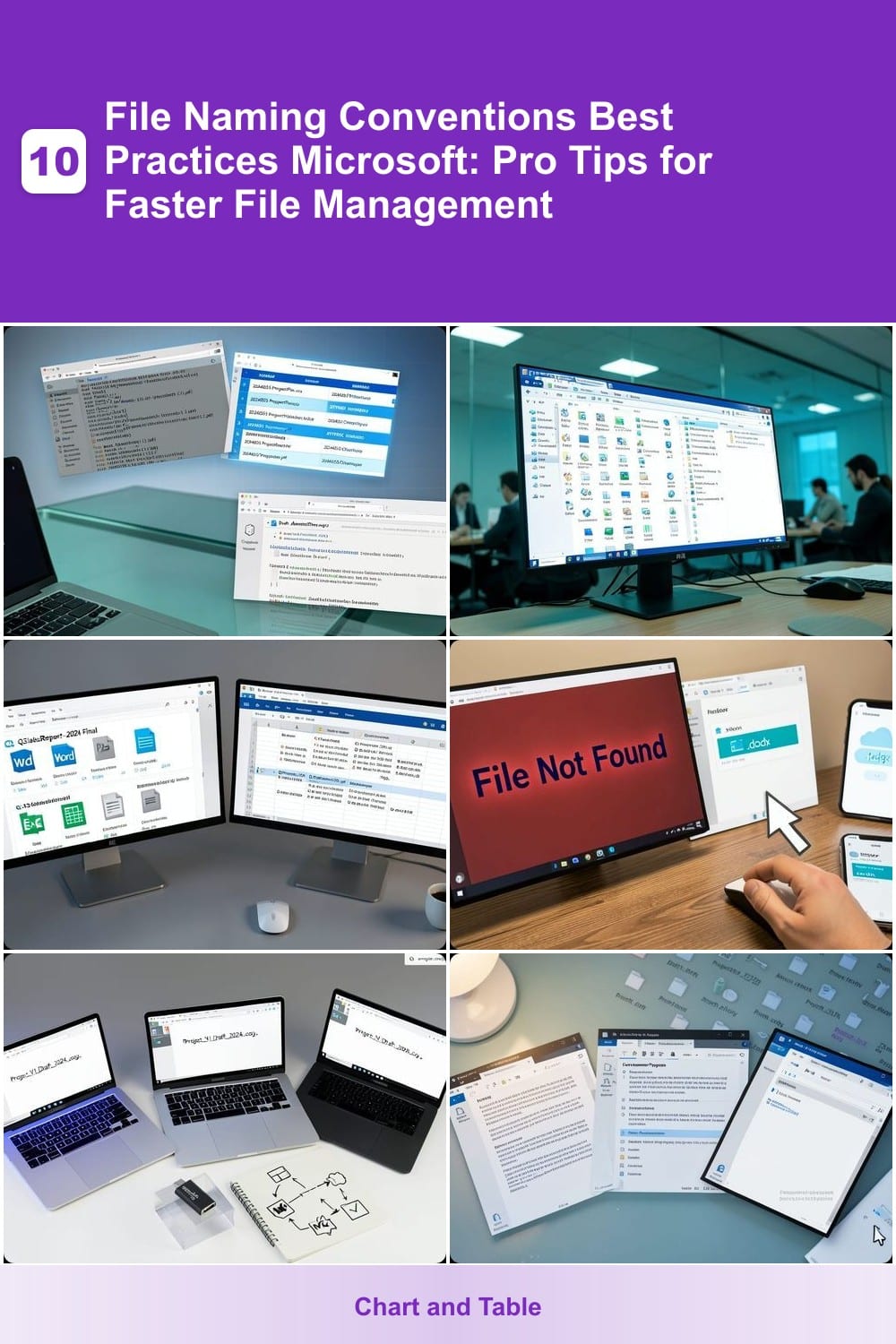
Struggling to find files in your Microsoft ecosystem? Poor naming conventions create chaos in Windows, OneDrive, and Office apps. These seven file naming best practices will streamline your workflow, boost searchability, and save hours of frustration each year.
Date-Based Naming for Version Control
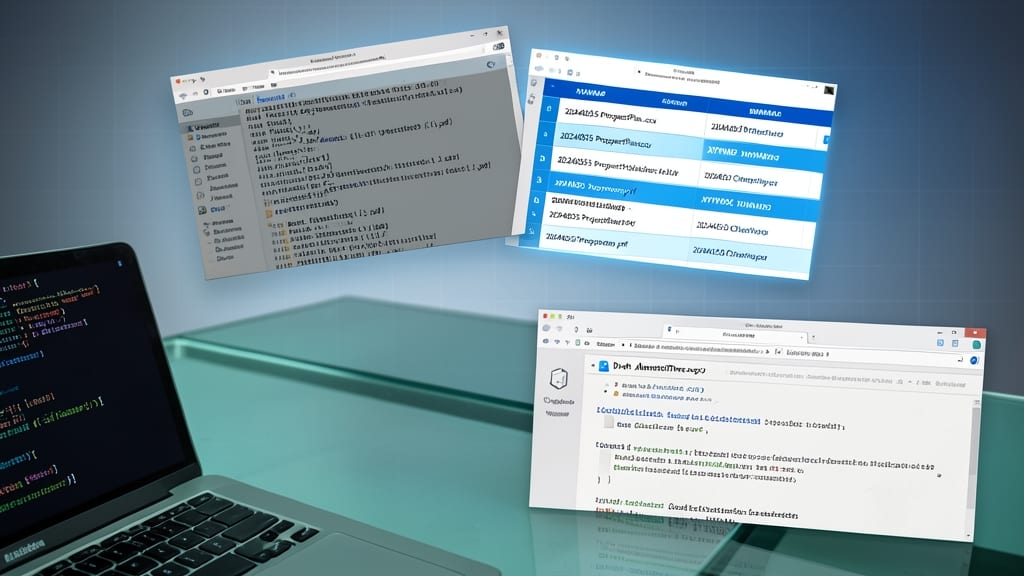
Tired of sifting through unsorted documents in SharePoint or Teams? A YYYYMMDD prefix turns your file chaos into an instantly sortable timeline—no more guessing which version is latest.
Prefixing your files with 20240515ProjectPlan.docx (instead of "FinalFinal_V2.docx") lets Windows, OneDrive, and SharePoint auto-sort chronologically by filename. This works seamlessly with Microsoft's built-in search and version history tools, so you’ll always find the right iteration without manual digging. The numeric format also avoids alphabetical traps (like "2024" vs "2" sorting issues).
Perfect for teams managing contracts, proposals, or compliance docs where version tracking is critical. ⚡
Project-Code Prefixes for Shared Teams
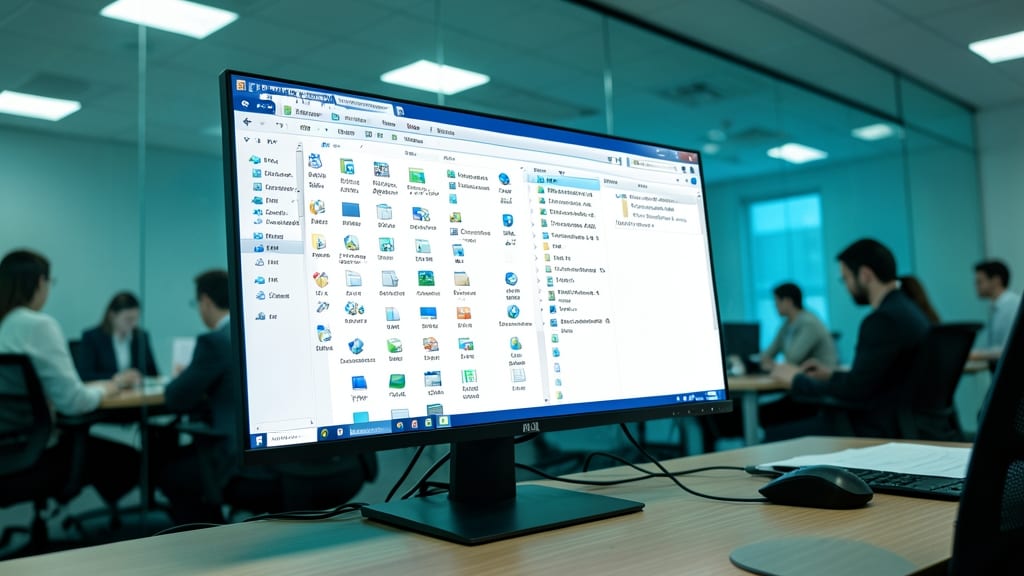
Shared team drives are a treasure trove of files—if you can actually find them. The solution? Project-code prefixes like MKT for Marketing or FIN for Finance, which instantly categorize files at a glance without digging through folders.
Use a consistent 3-letter code followed by a hyphen (e.g., MKT-Q3-Report_2024.docx) to ensure everyone knows the file’s origin. This works seamlessly in SharePoint, Teams, and OneDrive, where filters and search tools recognize structured prefixes. Plus, it eliminates confusion when files are moved between drives.
Perfect for cross-department projects where files get shared frequently. Teams will thank you when they can spot the right document in seconds! ✨
Keyword-First for Office Search
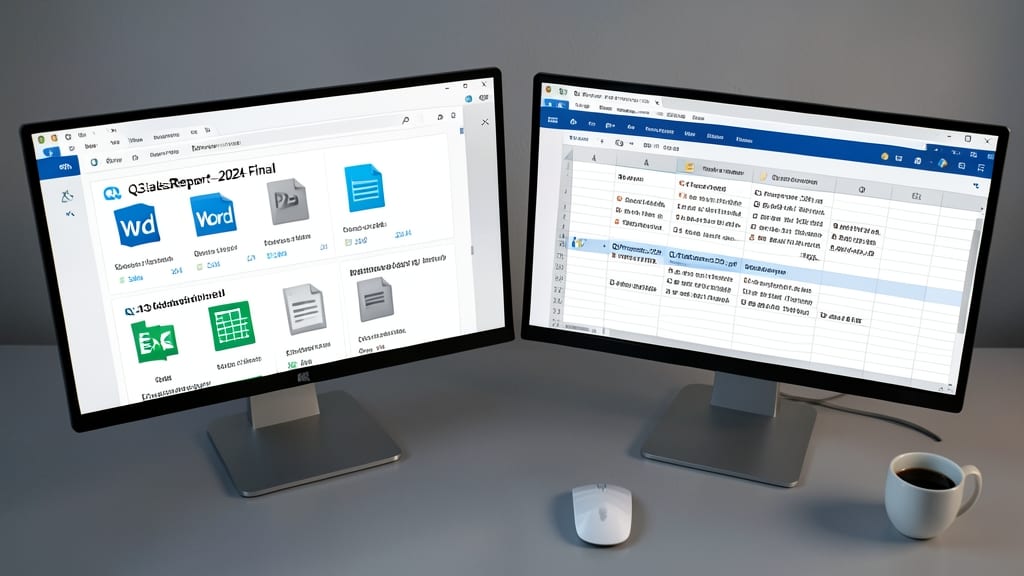
Tired of scrolling through endless "Document123" files when you need that critical report? Keyword-first naming turns Windows Search and Office 365's AI into your secret weapon—just place the most important terms at the start (like "Q3SalesReport2024") for instant retrieval across Word, Excel, and even OneDrive.
This method works because Windows Search prioritizes text near the beginning of filenames, while Office 365's AI (like Copilot) scans for these keywords first. The underscore separator ensures compatibility, and the format ("ProjectYear_Description") keeps names clean while maximizing searchability. No more digging through folders—just type what you need and let the system do the work.
Perfect for knowledge workers who juggle multiple projects or teams that rely on shared libraries. Give it a try, and you’ll wonder how you ever lived without it. ✨
File Type Extensions for Clarity
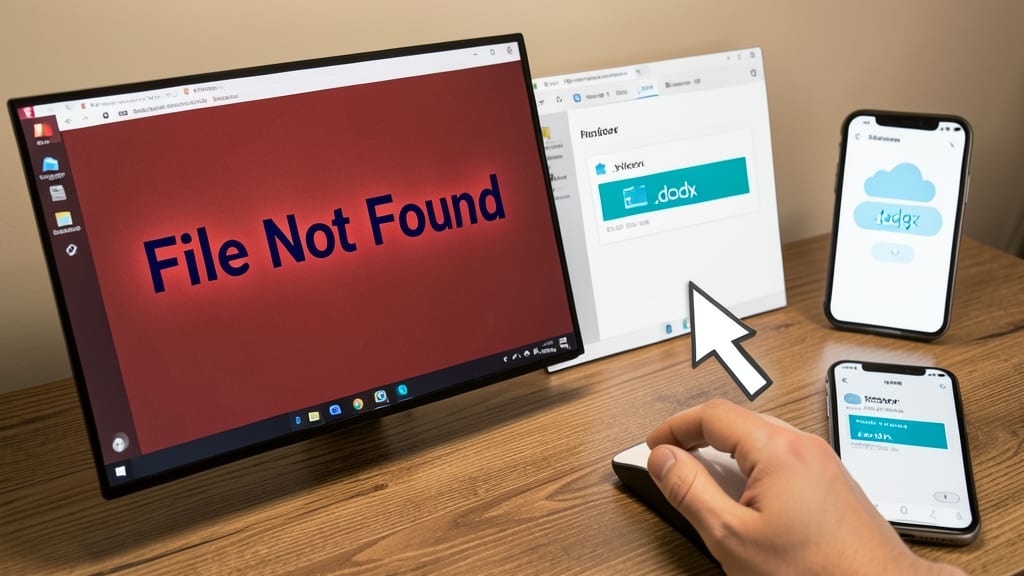
Ever opened a file only to find it’s the wrong format—or worse, corrupted—because the extension was missing? A simple .docx or .xlsx suffix prevents this by clearly labeling file types, ensuring compatibility across Windows, macOS, and mobile devices.
Microsoft’s default settings hide extensions, but enabling them (via File Explorer > View > Hidden items) reveals critical details. For example, Report.doc could be a corrupted Word file, while Report.docx guarantees the correct format. This is especially vital when sharing files—Outlook, Teams, or OneDrive all rely on extensions to process attachments accurately.
Teams and freelancers who collaborate across platforms will appreciate this rule most—it’s the first line of defense against accidental overwrites or format mismatches. ✨
Underscore Separators for Complex Names
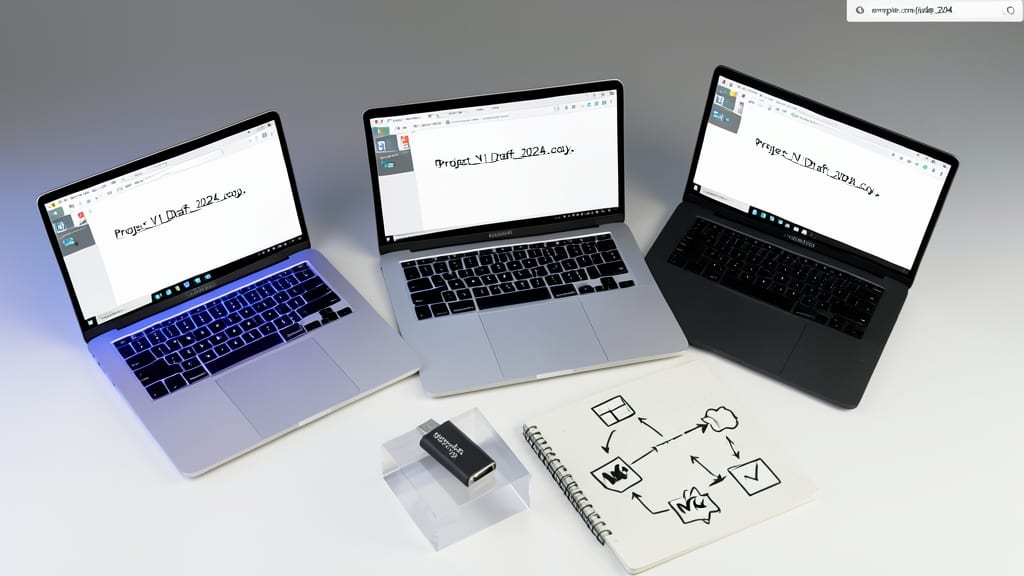
Tired of filenames breaking when shared across Windows, macOS, and Linux? Underscores () solve this by working seamlessly everywhere—no more corrupted filenames or URL errors. Unlike spaces or hyphens, they’re universally supported in file systems and web links, making them the safest choice for complex names.
Use underscores to separate words in filenames like Project2024Q3Final.docx, which remains intact when uploaded to SharePoint, emailed to clients, or shared via GitHub. They’re also URL-friendly, so links to files stay clean (e.g., example.com/file_archive.zip). Plus, they’re easier to type than hyphens or spaces, reducing accidental typos.
This is the go-to separator for developers, IT teams, and anyone collaborating across platforms. No more headaches—just reliable, cross-system compatibility. ✨
Metadata Tags Over Filenames
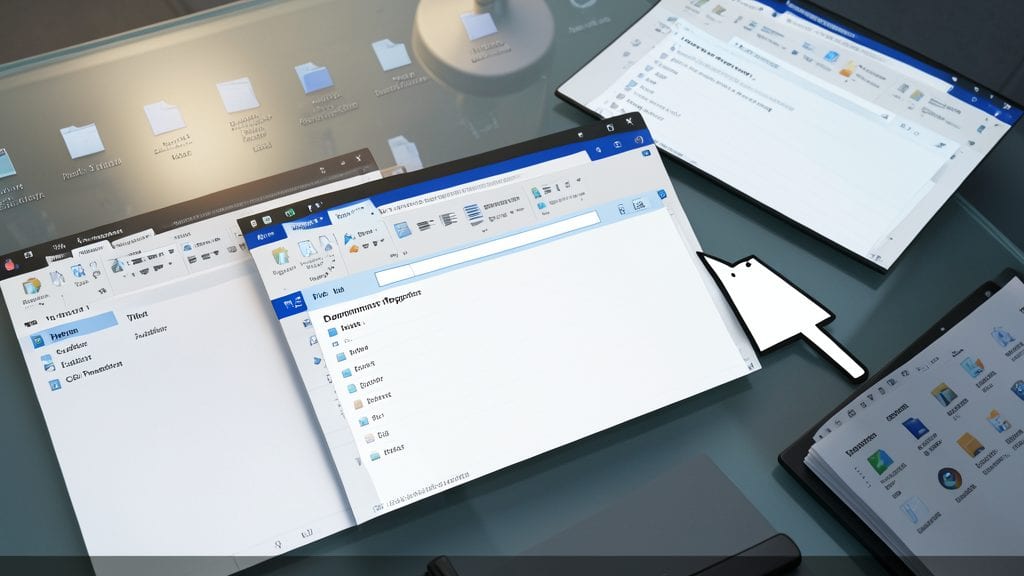
Tired of cluttered filenames that still don’t help you find what you need? Microsoft Office’s Document Properties (like Title and Subject) let you embed searchable metadata without bloating filenames—ideal for teams drowning in files.
Simply open File > Info > Properties in Word, Excel, or PowerPoint and add structured tags (e.g., Project: Q3Sales, Owner: Sarah). These fields sync with Windows Search and SharePoint, making retrieval faster than ever. Unlike filenames, metadata stays editable even after sharing, and Office 365’s AI indexes them automatically for instant results.
Perfect for enterprise teams or freelancers managing complex projects—keep filenames clean (e.g., Q3_Report.docx) while embedding all critical details invisibly. ✨
Backup Version Suffixes for Safety
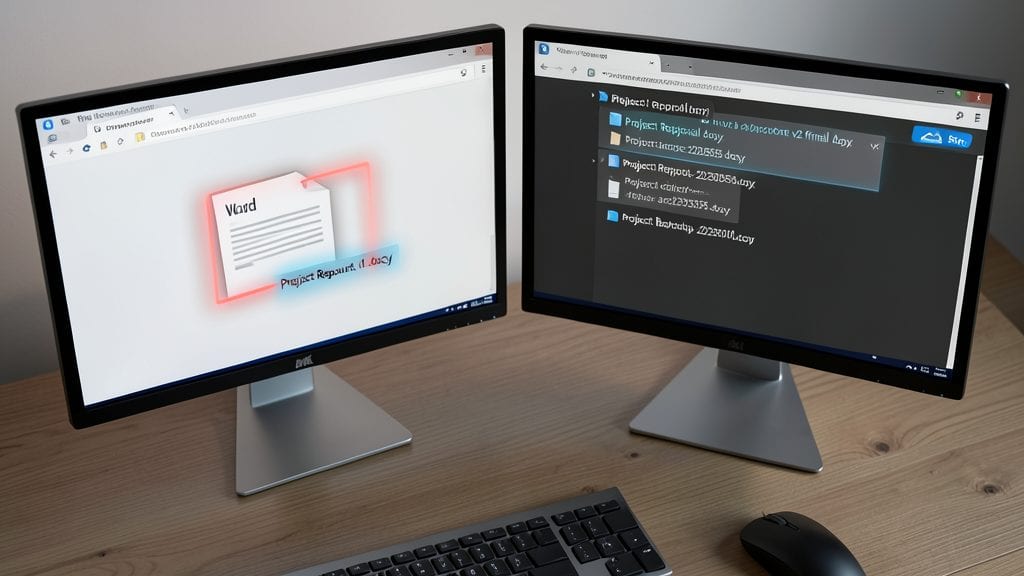
Ever lost a critical file because you overwrote the original? Backup version suffixes act as your digital safety net—appending -v2, -final, or -archive to filenames ensures you never lose progress while keeping working copies intact.
Microsoft’s OneDrive and SharePoint automatically detect these patterns, making recovery effortless. For example, rename your draft to Proposalv2.docx before submitting the Proposalfinal.docx version—this creates a clear audit trail. The -archive suffix works perfectly for finalized but rarely-needed copies, keeping your active files lean.
This system is a lifesaver for freelancers, project managers, and anyone juggling multiple revisions. It’s simple, universally compatible, and turns file chaos into a structured backup system. ✨