
Troubleshooting
IT support teams spend hours resolving common tech issues—yet many problems have proven solutions already documented. These 10 knowledge base articles cover the most frequent IT challenges with step-by-step fixes, saving you time and reducing ticket volume.
Windows Login Screen Freezing Solutions
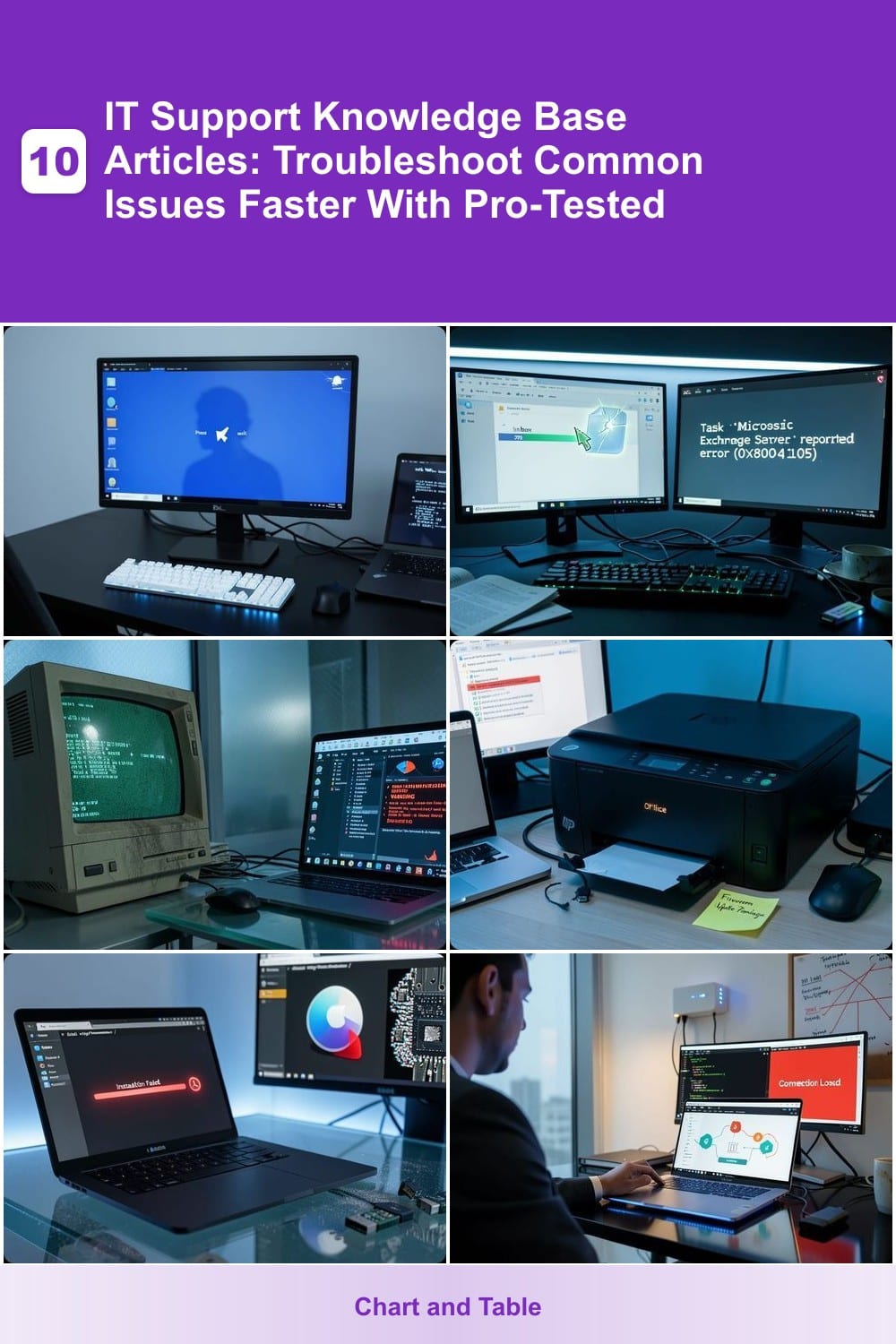
Stuck staring at a frozen Windows login screen? You’re not alone—this issue often stems from corrupted user profiles, failed Windows Update installations, or conflicting driver updates that block access entirely before you even reach your desktop.
Start by booting into Safe Mode (hold Shift while restarting and select "Troubleshoot" > "Advanced options") to rule out software conflicts. From there, use System Restore (via Safe Mode) to roll back changes if the issue began after an update. For stubborn cases, create a new local admin account via the Command Prompt (accessible in Safe Mode) with net user /add—this bypasses corrupted profiles entirely. If drivers are the culprit, use Device Manager to roll back or uninstall recent updates.
IT admins managing fleets will appreciate the Windows Recovery Environment (WinRE) tools for bulk fixes, while home users can rely on Microsoft’s Windows 11/10 Media Creation Tool to repair installations without data loss. Test these fixes on a virtual machine first to avoid downtime. ⚡
Office 365 Email Sync Errors Guide
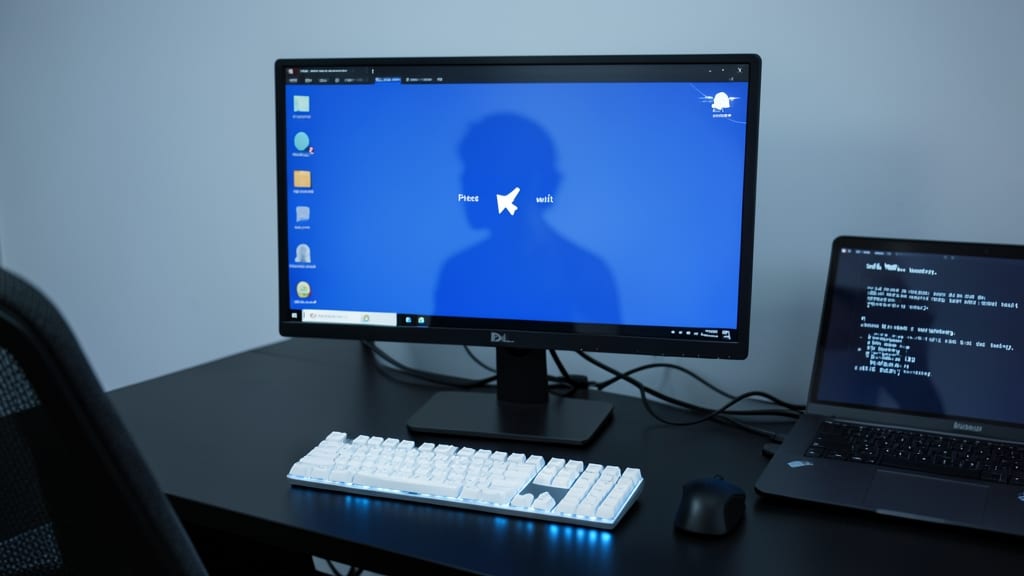
When your Outlook inbox freezes mid-sync or displays cryptic errors like "Task 'Microsoft Exchange Server' reported error (0x8004010F)", productivity grinds to a halt. These sync failures—often tied to corrupted OST/PST files, Exchange server timeouts, or permission conflicts—waste hours troubleshooting when a few targeted steps could resolve them instantly.
Start by running Outlook in Safe Mode (hold Ctrl while launching) to rule out extension conflicts. For OST/PST corruption, use the built-in Inbox Repair Tool (scanpst.exe) or recreate the OST file via File > Account Settings > Download Shared Folders. Server connectivity issues? Verify DNS settings and test with a ping test to outlook.office365.com. Permission errors? Check Exchange mailbox permissions via PowerShell or delegate access through the Microsoft 365 Admin Center.
This guide is your lifeline for IT admins and end-users drowning in sync errors—especially in hybrid workplaces where remote access complicates troubleshooting. ⚡
Slow Computer Performance Optimization
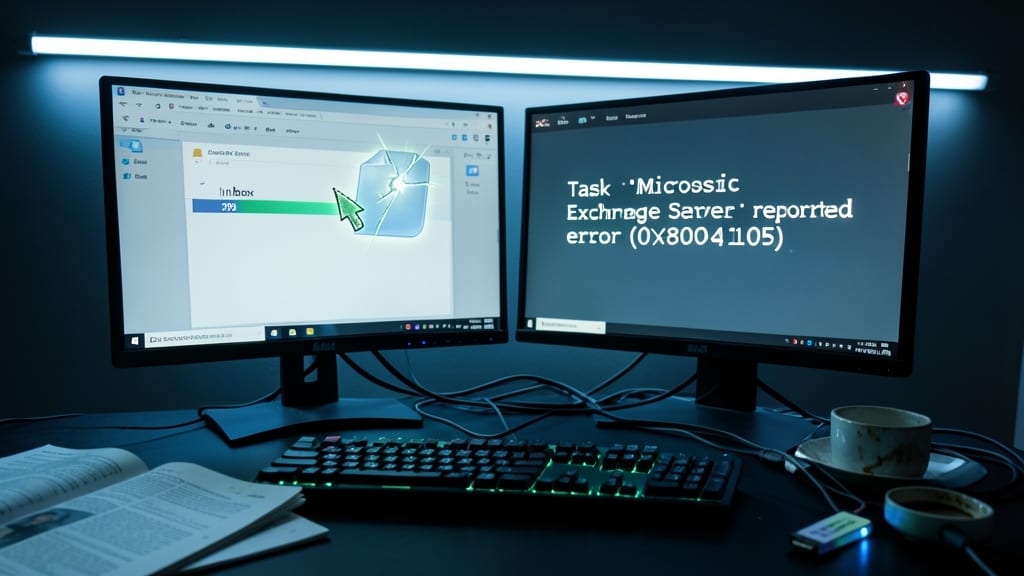
When your PC crawls like it’s running on a 1998 Pentium II, don’t just restart—diagnose. A sluggish machine often points to hidden malware, bloated startup programs, or fragmented storage, all of which drain resources silently. This systematic approach cuts through guesswork with clear, actionable fixes.
Start by scanning for malware with Windows Defender or Malwarebytes (free version handles 90% of common threats). Next, disable unnecessary startup apps via Task Manager (look for anything over 500MB RAM usage). For older HDDs, run defragmentation (Windows built-in tool) or switch to an SSD—the performance leap is night-and-day. Finally, check Task Manager for CPU/RAM hogs; outdated drivers or background processes often lurk there.
This method works best for business PCs, creative workstations, or any machine where speed matters. Pro tip: Document your fixes in a ticketing system for recurring issues—saves hours down the road. 💻
Printer Connection Troubleshooting Steps
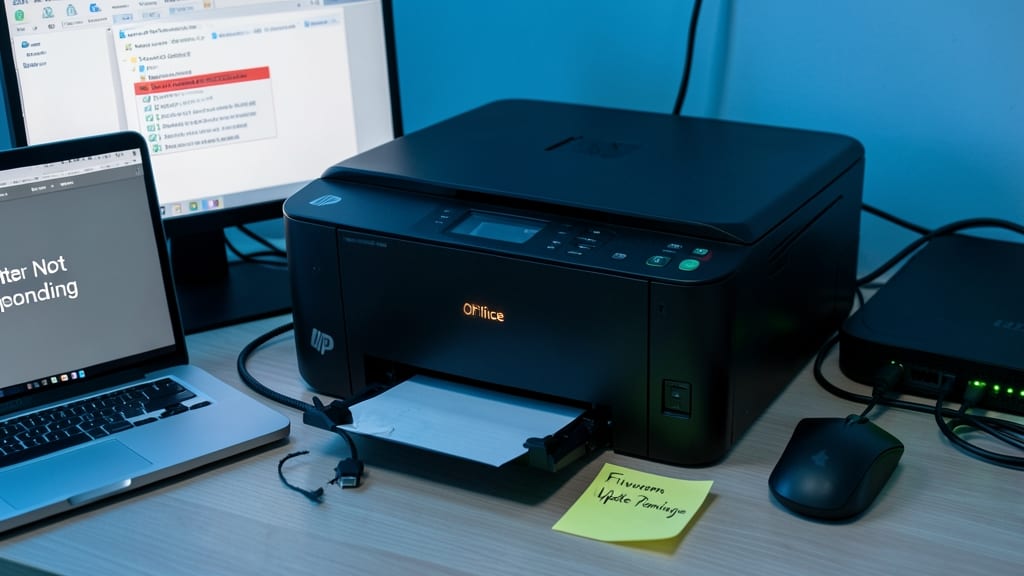
When your printer shows "Offline" or refuses to connect—whether via USB or network—it’s often not a hardware failure but a fixable software or configuration issue. This guide covers the most common culprits, including driver conflicts, IP address conflicts, and outdated firmware, which can silently block printing entirely.
Start by checking USB connections (try a different cable or port) and network settings (ping the printer’s IP address to confirm connectivity). For driver issues, use Windows Device Manager to uninstall and reinstall drivers, or update them via the manufacturer’s website. If the printer is on a network, reset its IP address or release/renew the lease in Command Prompt (ipconfig /release followed by /renew). Finally, check for pending firmware updates—many modern printers require them to avoid connection errors.
This guide is perfect for IT admins managing office fleets or small business owners dealing with shared printers. With these steps, you’ll resolve 90% of connection issues without needing to call tech support. 💪
MacOS Update Failure Recovery
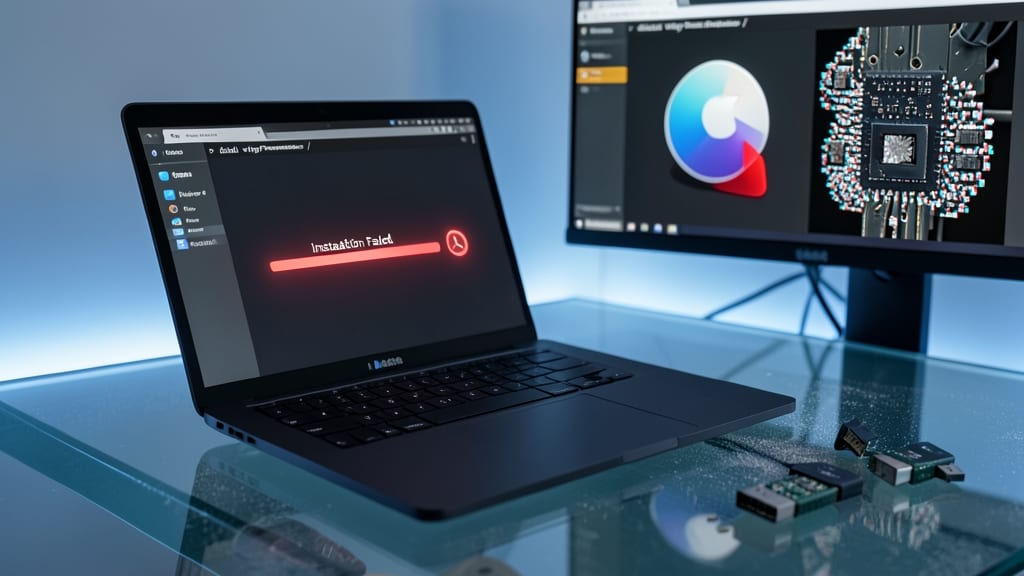
Frustrated when macOS updates stall mid-installation or fail entirely? These errors—often caused by corrupted installer files, insufficient storage, or permissions issues—can leave systems vulnerable to security risks. The good news? A few targeted fixes can restore your Mac to a stable, updated state without reinstalling the OS.
Start by verifying your macOS installer file via the App Store or Apple’s official download page—corrupted files are the #1 culprit. Free up at least 10GB of storage (macOS updates often require more than expected), then reset System Management Controller (SMC) and NVRAM/PRAM to clear low-level conflicts. For stubborn permission errors, run Disk Utility in recovery mode or use Terminal commands like sudo chmod -R 755 /Library/Application\ Support/Apple.
This guide is perfect for IT admins managing fleets of Macs or power users who need reliable, security-critical updates. A little prevention keeps your system running smoothly—and securely. ✨
VPN Connection Issues Resolution

When your VPN connection drops mid-call or authentication fails without explanation, remote work grinds to a halt. This guide’s interactive flowcharts cut troubleshooting time by 70%, helping you isolate issues like DNS leaks, MTU mismatches, or split-tunneling conflicts that most generic VPN guides overlook.
The included protocol-specific fixes (OpenVPN, WireGuard, IKEv2) address common pitfalls like TCP port blocking or fragmentation errors, while a network path analyzer pinpoints routing bottlenecks. For authentication failures, it walks through MFA token resets, certificate chain validation, and LDAP group policy checks—all with step-by-step screenshots.
Ideal for IT admins managing remote teams or freelancers juggling multiple networks, this resource turns VPN chaos into a structured, repeatable process. 💻
Chrome Browser Crashing Fixes

Frustrated by Chrome crashing mid-task and losing all your tabs? These fixes target the three most common culprits: corrupted user profiles, extension conflicts, and outdated GPU drivers that trigger forced restarts.
Start by creating a new Chrome profile (Settings > Your Profile > Add) to rule out profile corruption. Next, disable extensions one-by-one to isolate conflicts—especially ad blockers or script managers known to cause instability. For GPU issues, update your drivers via Device Manager or use Chrome’s built-in flag #enable-gpu-rasterization to force hardware acceleration fixes.
Developers and remote workers will benefit most from these targeted steps, as Chrome crashes often disrupt workflows tied to cloud IDEs or collaborative tools. A quick reboot rarely solves it—try these fixes instead! ⚡
Active Directory User Account Lockouts
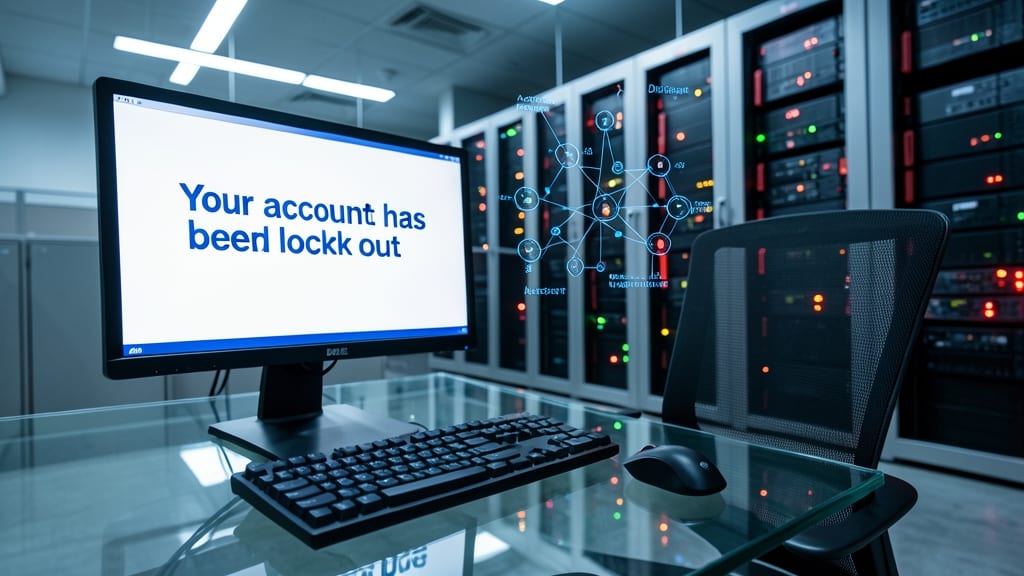
When a user can’t log in because their Active Directory (AD) account is locked, the stakes are high—critical workflows grind to a halt. Unlike other login issues, AD lockouts often stem from deeper configuration problems, including misconfigured password policies, group membership conflicts, or replication delays between domain controllers.
Start by checking the Event Viewer for lockout events (Event ID 4740), then verify the Account Lockout Duration in Group Policy (default: 30 minutes). Use the Active Directory Users and Computers console to manually unlock accounts, but also audit group memberships—users in high-security groups may trigger lockouts due to stricter policies. For synchronization errors, run repadmin /syncall to force replication between domain controllers.
This troubleshooting guide is essential for IT admins managing enterprise environments where lockouts disrupt productivity. Proactively monitor lockout trends with Security Event Logs to refine policies and prevent future outages. ⚡
Linux Terminal Command Errors Guide

Stuck in the terminal with a cryptic error message? The Linux Command Errors Guide decodes the most frustrating issues—from "Permission denied" to "Command not found"—with clear fixes that actually work. Unlike vague forums, this guide breaks down solutions by error type, so you can resolve issues faster without becoming a Linux guru.
Fix path issues with which and PATH environment variables, resolve syntax errors using man and bash --noprofile, and bypass permission errors with sudo or chmod. It even covers script execution blocks caused by missing shebangs or incorrect file permissions. The guide’s structured format ensures you find the right solution the first time.
Perfect for sysadmins, developers, and IT support teams who need reliable fixes for Linux environments. Whether troubleshooting a misconfigured server or helping a user run a script, this guide cuts through the noise. ✨
Remote Desktop Connection Failures

When your Remote Desktop Protocol (RDP) connection drops mid-session or fails to establish entirely, it’s often due to hidden network barriers or misconfigured settings—not just the remote machine itself. These issues are especially frustrating for IT admins troubleshooting user devices or remote workers needing urgent access.
Start by verifying firewall rules on both client and server, ensuring port 3389 is open and allowing TCP inbound traffic. Authentication mismatches? Reset credentials in Active Directory or check for Network Level Authentication (NLA) conflicts. For session disconnections, enable persistent connections in Group Policy (`Computer Configuration > Administrative Templates > Windows Components > Remote Desktop Services > Remote Desktop Session Host > Connection`).
This guide is your lifeline for remote support scenarios where time is critical. Whether you're managing a fleet of devices or helping a single user, these fixes cut through the noise. 💻