
PowerPoint
Want to make your PowerPoint presentations more dynamic and engaging? These seven transition effects will help you create smooth, professional slides that keep your audience focused and impressed—without looking unprofessional.
Fade Transition for Subtle Professionalism
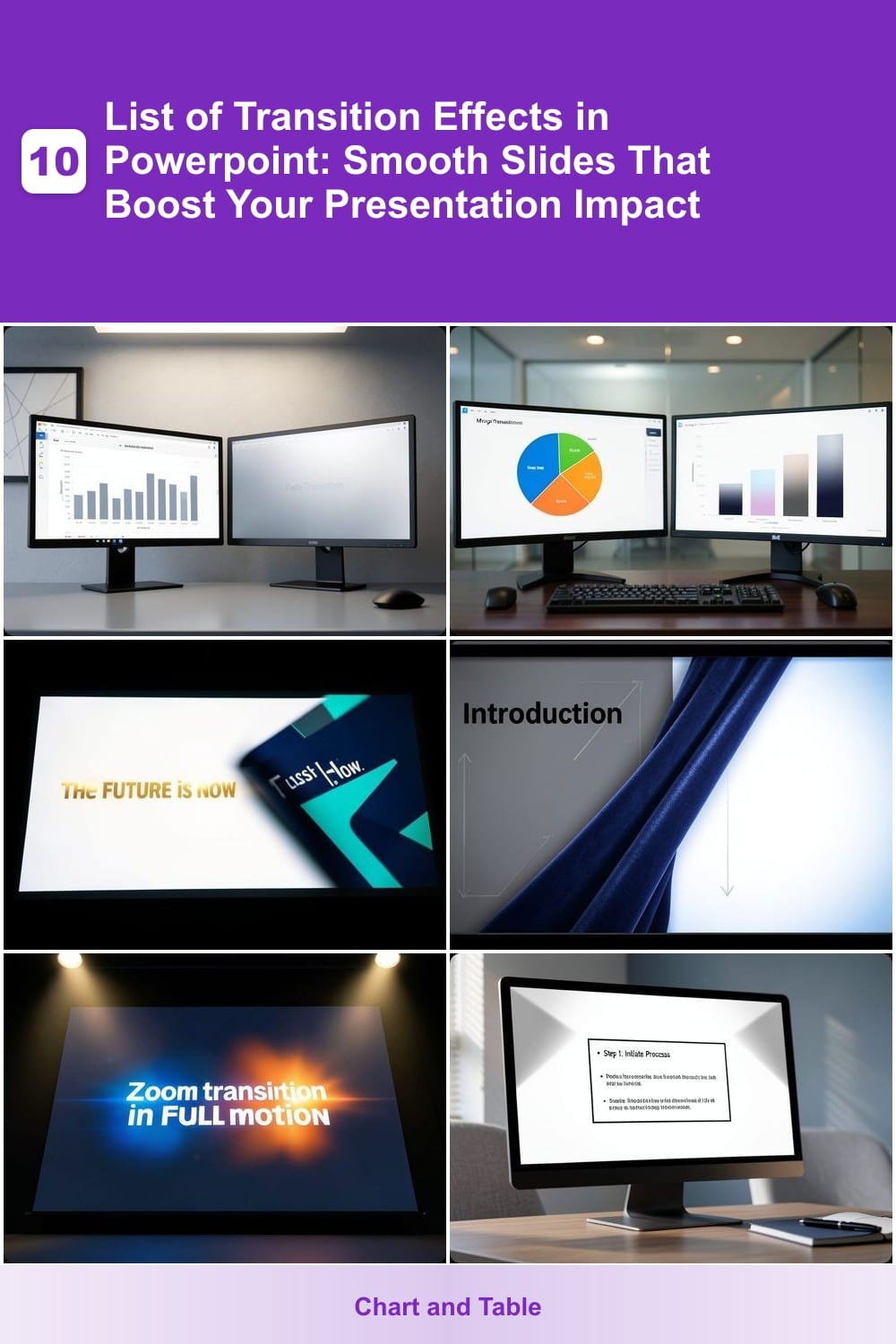
When your presentation needs to feel polished yet effortless, the Fade Transition is the quiet powerhouse of PowerPoint effects. Unlike flashy animations, this zero-distraction effect smoothly dissolves one slide into the next, keeping the focus squarely on your data—not the visuals.
Available in PowerPoint 2013 and later (including PowerPoint 365), the Fade Transition works seamlessly across Windows and Mac with consistent performance. Its adjustable speed (from 0.5x to 4x) lets you control pacing, while the sound effect toggle ensures you can mute it for silent presentations. For boardrooms or client meetings, this is the default choice for subtle professionalism.
Perfect for financial reports, market analyses, or executive summaries, this transition reinforces credibility by avoiding visual clutter. Use it consistently across slides to create a cohesive, high-end feel—without ever overpowering your message. ✨
Morph Transition for Seamless Visual Flow
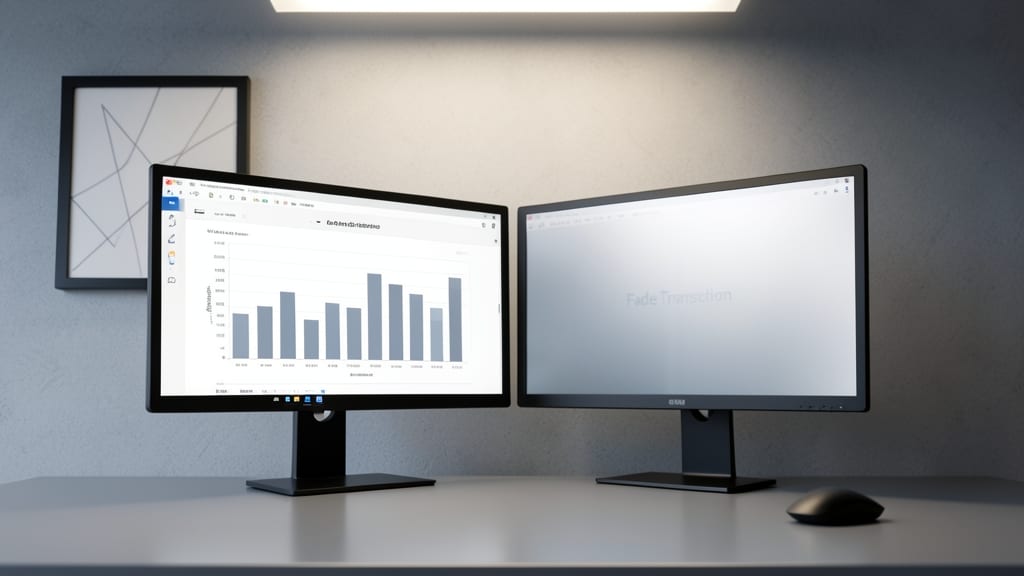
When your slides need to evolve visually without jarring the audience, the Morph transition is your secret weapon. Unlike abrupt cuts or fades, it smoothly reshapes objects—like turning a pie chart into a bar graph—so viewers stay locked in without cognitive whiplash.
Available in PowerPoint 2016 and later (including the desktop and web versions), this effect works best with shapes, icons, or simple graphics—not text-heavy slides. The transition speed is fully customizable, letting you control pacing for maximum impact. For designers, it’s a game-changer when explaining data trends or workflows.
Perfect for creative agencies, educators, or marketers who want to guide attention naturally. Just avoid overusing it—save this sleek effect for slides where visual storytelling matters most. ✨
Push Transition for Dynamic Emphasis
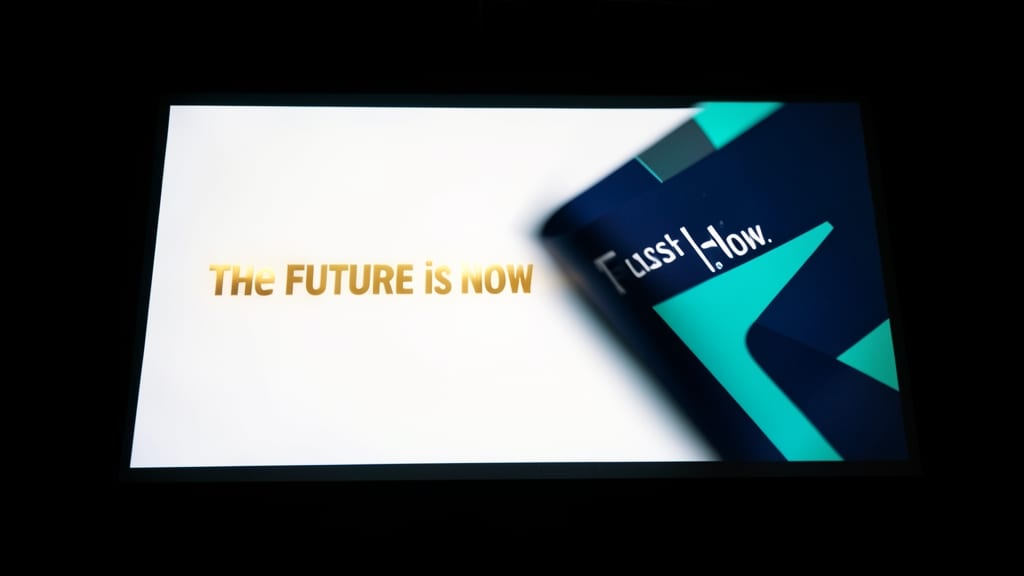
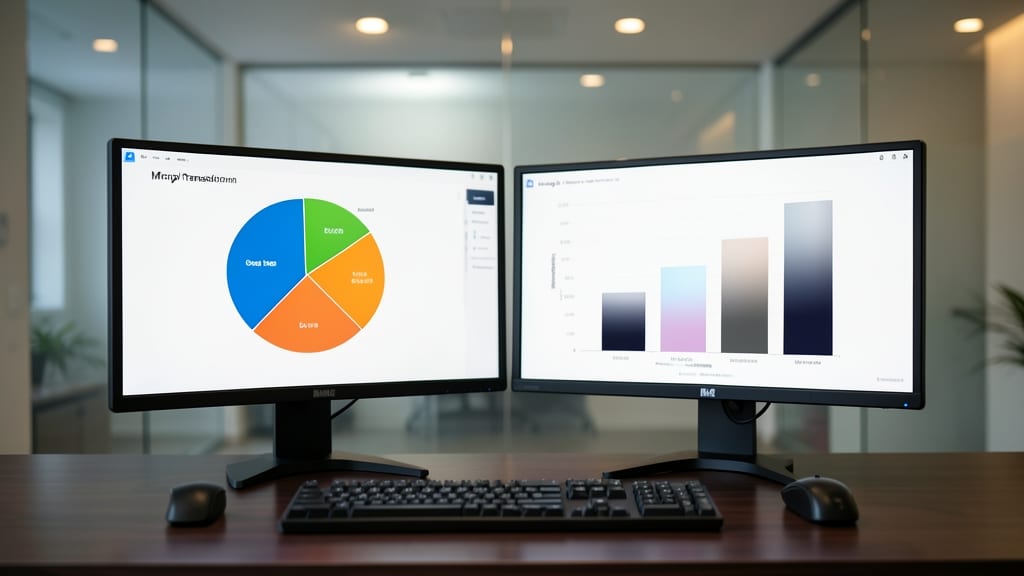
When you need to command attention during a keynote or storytelling session, the Push Transition delivers exactly that—a bold, directional effect that feels intentional and impactful. Unlike subtle fades or smooth morphs, this transition "pushes" the current slide off-screen while the next one glides into place, creating a sense of momentum and urgency.
Available in PowerPoint 2016, 2019, and 365, this effect works best with horizontal or vertical slide layouts (e.g., pushing left-to-right for chronological storytelling). You can adjust the speed and direction (push left, right, up, or down) to match your presentation’s flow, and it pairs well with bold typography or high-contrast visuals for maximum emphasis. ⚡
Perfect for TED-style talks, motivational speeches, or product launches, this transition keeps the audience engaged without veering into gimmicky territory. Use it sparingly—once per section—to mark pivotal moments. ✨
Wipe Transition for Clean Segment Changes
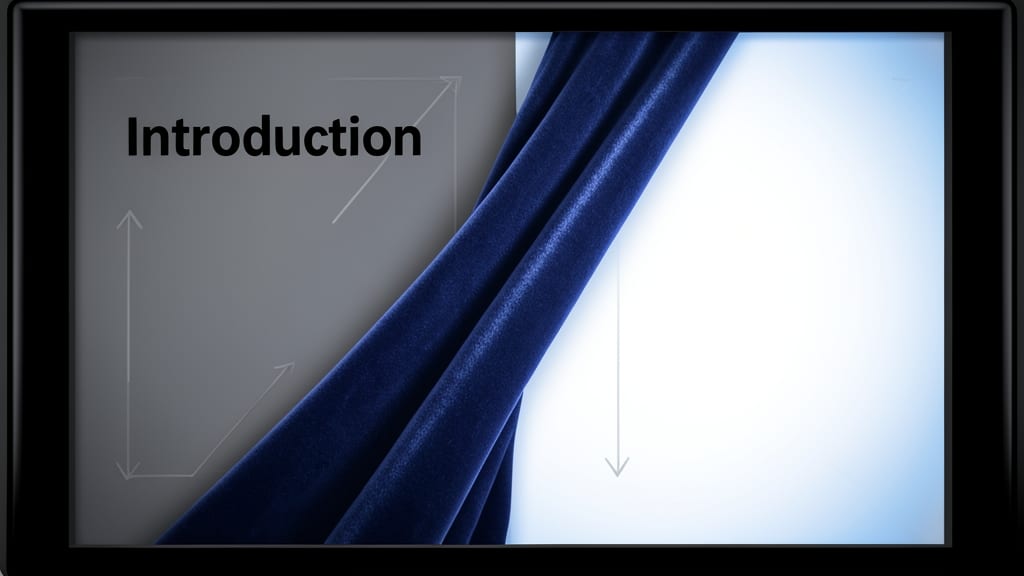
Struggling to keep your audience engaged during a long presentation? The Wipe Transition delivers a theatrical curtain effect that signals a clear shift between sections—like moving from an introduction to core content—without overwhelming your slides.
Available in horizontal, vertical, or diagonal directions, this transition works seamlessly in PowerPoint 2016, 2019, and 365. The crisp reveal helps structure your narrative, making it ideal for educational modules, training sessions, or any presentation where pacing matters. Pair it with a timed delay to control the reveal and keep your audience’s focus sharp.
Teachers, trainers, and professionals who rely on structured storytelling will find this transition a game-changer for maintaining clarity. ✨
Zoom Transition for Highlighting Key Points
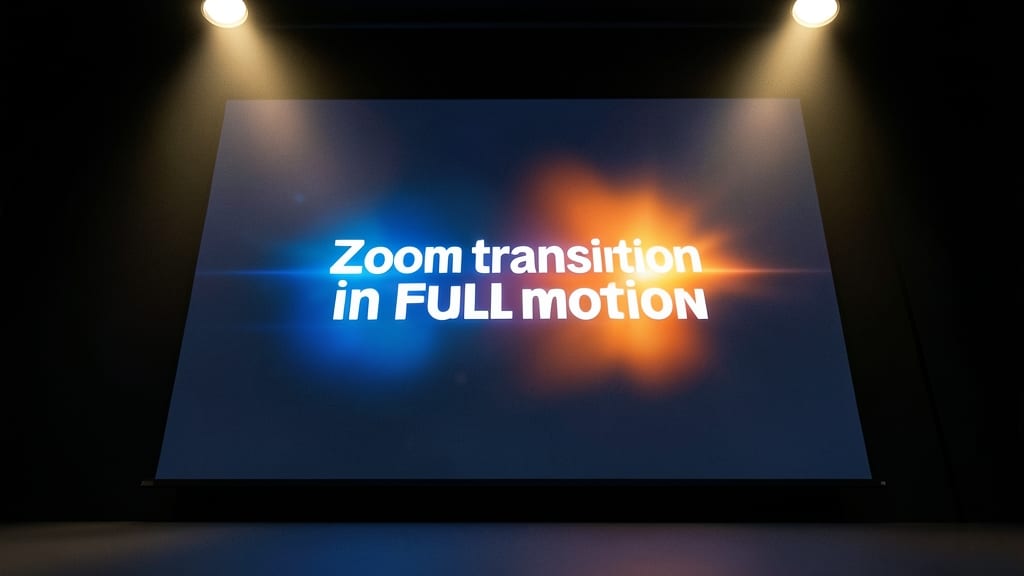
Struggling to make your closing slides stand out? The Zoom transition in PowerPoint is your secret weapon for turning ordinary conclusions into memorable moments. Unlike other transitions, it doesn’t just move slides—it draws the audience’s eye to your key message by zooming in or out with cinematic flair.
Available in PowerPoint 2013 and later, this effect works best with centered content (like headlines or call-to-action buttons) and pairs well with spotlight animations for extra impact. Adjust the speed (0.5s–5s) to control intensity—faster zooms feel urgent, while slower ones add drama. Pro tip: Use it once per presentation (e.g., on your final slide) to avoid overwhelming viewers.
Perfect for sales pitches, keynotes, or training sessions where you want to leave a lasting impression. Just remember: less is more—this transition shines brightest when used strategically, not everywhere. ✨
Box In/Out Transition for Structured Reveals
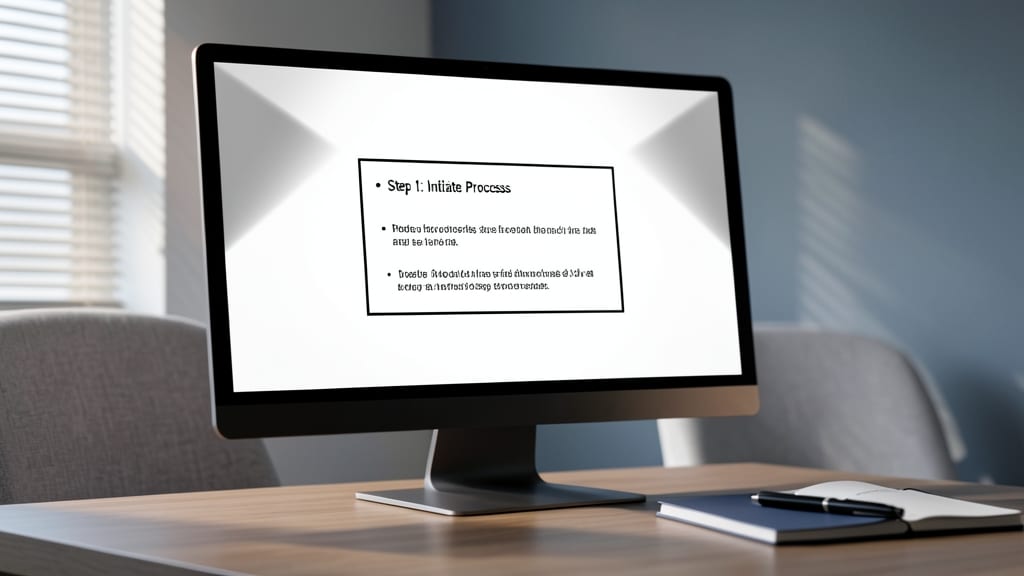
Need to guide your audience through a process without losing their focus? The Box In/Out transition is your secret weapon for structured reveals. Unlike flashy effects, this transition frames content like a spotlight, drawing attention to each step while keeping distractions minimal.
Available in PowerPoint 2013 and later, it works by either sliding content into or out of a boxed area. You can customize the box color, timing, and direction (horizontal/vertical) to match your design. Perfect for tutorials, workflows, or any slide where progression matters—like a step-by-step guide or comparison chart.
Trainers, educators, and technical presenters will love this for its clarity. Just avoid overusing it—save it for slides where precision matters most. ✨
Random Bars Transition for Creative Energy
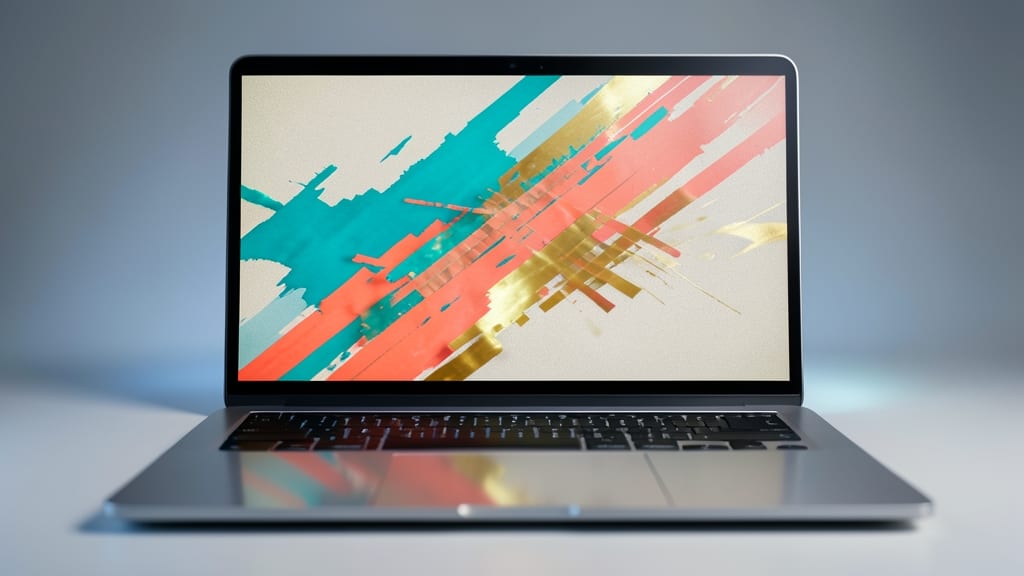
Tired of predictable slide transitions? The Random Bars effect injects spontaneity into your presentations with its chaotic yet controlled motion—think of it as a digital mood ring for your slides.
This transition replaces smooth shifts with colorful, irregular bars that slide across the screen in unpredictable patterns. It’s available in PowerPoint 2016 and later, including the desktop and online versions, and pairs perfectly with vibrant color schemes. The effect works best when applied to 2-3 slides max—just enough to spark curiosity without distracting from your message.
Ideal for startup pitches, creative workshops, or brainstorming sessions, this transition signals innovation without sacrificing professionalism. Just don’t overuse it—like a sprinkle of glitter, a little goes a long way! ✨