
Tip & Trick
Remote work offers flexibility but exposes you to cyber threats like phishing, malware, and data breaches. These 10 security best practices—backed by cybersecurity experts—will fortify your digital workspace and keep your sensitive work data locked down.
Use Multi-Factor Authentication Everywhere
Cybercriminals don’t just target work accounts—they start with your personal email, often the weakest link in your security chain. Enabling multi-factor authentication (MFA) on every account (yes, even personal ones) adds a critical layer of defense that thwarts 99.9% of automated attacks.
Modern MFA methods like authenticator apps (Google Authenticator, Authy) or hardware keys (YubiKey) go beyond SMS codes, which are easily intercepted. Services like Microsoft, Google, and Apple now offer seamless MFA setup, while tools like Duo Security provide enterprise-grade protection for work accounts. Even social media platforms—common phishing entry points—support MFA, making it a universal shield.
This is non-negotiable for remote workers, freelancers, or anyone with sensitive data. Start with your email, banking, and cloud storage—the trifecta attackers prioritize. ⚡
Secure Your Home Wi-Fi Network
Your home Wi-Fi isn’t just a convenience—it’s often the first entry point for hackers targeting remote workers. Default router passwords are public knowledge, and WPS (Wi-Fi Protected Setup) is a notorious security flaw that lets attackers bypass encryption in seconds.
Start by changing your router’s default admin password to something unique and complex. Then, upgrade from WPA2 to WPA3 encryption, which adds forward secrecy to prevent offline decryption attacks. Finally, disable WPS entirely—it’s a relic that’s been cracked for years. Most modern routers let you do this in the admin panel under Wireless Settings or Security Settings.
This setup is ideal for remote workers who handle sensitive data, freelancers with client communications, or anyone who’s ever connected to public Wi-Fi and wondered if their traffic was being intercepted. 🔧
Install and Update Antivirus Software
Your antivirus software is only as strong as its last update—yet many remote workers neglect this critical step. Hackers exploit outdated defenses to deploy malware, ransomware, and spyware, turning unpatched systems into easy targets. The fix? Installing a reputable antivirus like Bitdefender (Total Security) or Malwarebytes (Premium) and enabling automatic updates to block zero-day threats in real time.
Bitdefender’s multi-layer ransomware shield and AI-powered threat detection catch 99.9% of malware, while Malwarebytes excels at removing persistent threats that evade traditional AVs. Both offer lightweight performance (under 5% CPU usage) so your workflow stays smooth. The key? Never disable auto-updates—even for "just a minute."
This is non-negotiable for anyone handling sensitive work data, freelancers with client files, or parents sharing devices with kids. A single unpatched system can infect your entire network. 💪
Create Strong, Unique Passwords
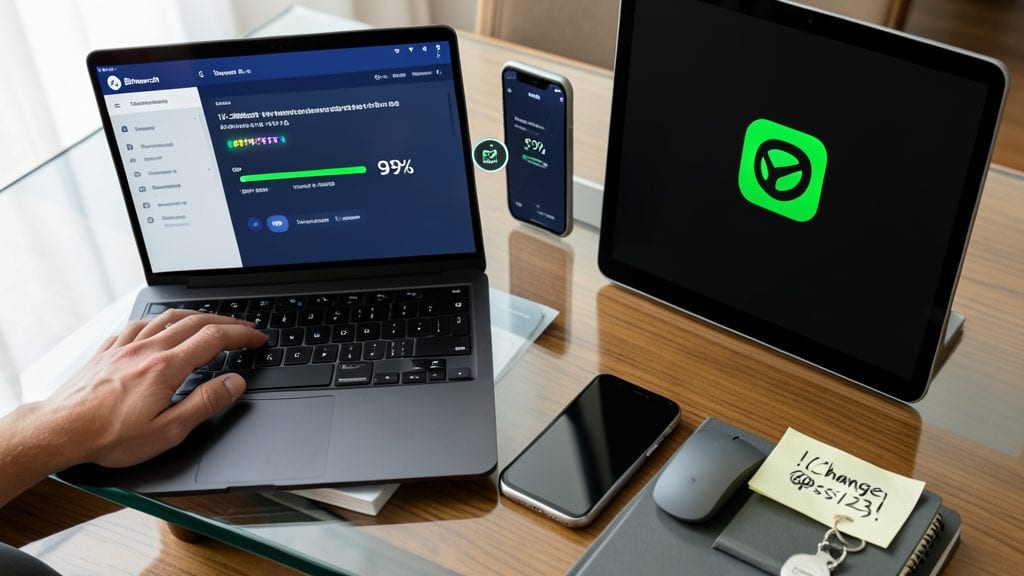
Tired of remembering endless passwords? Bitwarden and 1Password solve that problem—and so much more. These tools automatically generate and store 16-character+ passwords with random symbols, ensuring no account is left vulnerable to brute-force attacks.
With zero-config sync across devices and open-source transparency (Bitwarden), you can share passwords securely with teams or family while maintaining control. The real game-changer? Credential stuffing protection—these managers flag reused passwords in real-time, blocking attacks before they start.
Perfect for remote workers juggling work and personal accounts, these tools eliminate the #1 cause of breaches: weak or repeated passwords. 💻
Enable Full-Disk Encryption
Your laptop holds more than just work files—it’s a goldmine for hackers if left unprotected. Full-disk encryption (BitLocker for Windows, FileVault for Mac) ensures that even if your device is stolen or lost, your data stays locked behind a digital vault only you can open.
Setting it up is simpler than you think: Windows users get BitLocker built into Pro/Enterprise editions, while Mac users can enable FileVault in System Preferences. Both encrypt your entire drive, including the operating system, with AES-256 encryption—the same standard used by governments and banks. Recovery keys are stored securely, so you’re covered even if you forget your password.
This is a must-have for remote workers, freelancers, and anyone handling sensitive data. Whether you’re at a café or traveling, your files stay protected without slowing down your device. ✨
Avoid Phishing Scams with Email Filtering
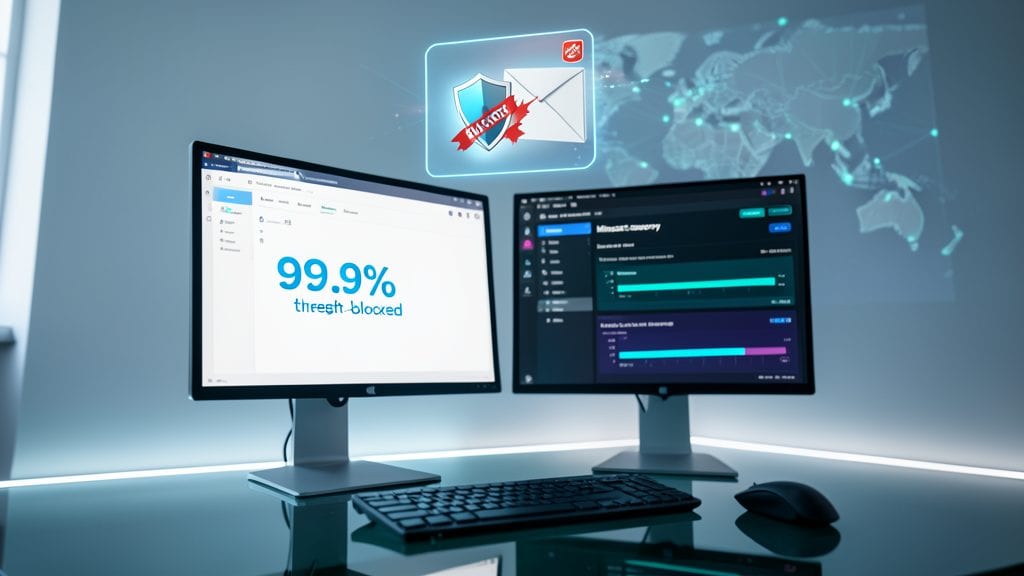
Phishing emails remain the #1 entry point for cyberattacks—yet most scams are stopped before they even reach your inbox with the right tools. Microsoft Defender for Office 365 blocks 99.9% of malicious links using AI-powered analysis, while Mimecast adds an extra layer with real-time URL scanning and impersonation detection.
Start by enabling safe links in your email client to automatically scan URLs, and train yourself to spot red flags like urgent requests, mismatched sender domains, or poorly written messages. These tools don’t just filter—they learn from new threats, adapting faster than traditional antivirus can. ⚡
Use a Virtual Private Network
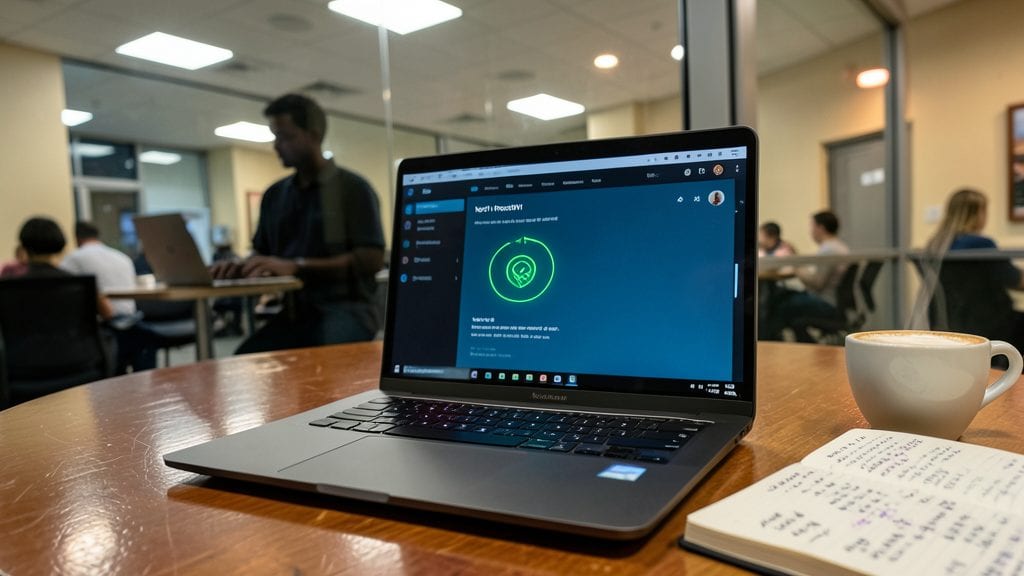
Public Wi-Fi at coffee shops or airports isn’t just convenient—it’s a hacker’s playground. A Virtual Private Network (VPN) like NordVPN or ProtonVPN creates an encrypted tunnel for all your internet traffic, masking your real IP address and blocking prying eyes from intercepting sensitive data like login credentials or financial transactions.
Top-tier VPNs offer military-grade encryption (AES-256), ad-blocking, and server locations worldwide to bypass geo-restrictions. NordVPN’s Threat Protection feature even blocks malicious websites, while ProtonVPN’s open-source audits ensure transparency. Both support split tunneling, letting you route only work traffic through the VPN while keeping local devices fast.
This is non-negotiable for remote workers accessing company resources on unsecured networks. Freelancers, journalists, or anyone handling sensitive data should prioritize a VPN—especially when traveling or using shared connections. 💻
Secure Your Work Devices Physically
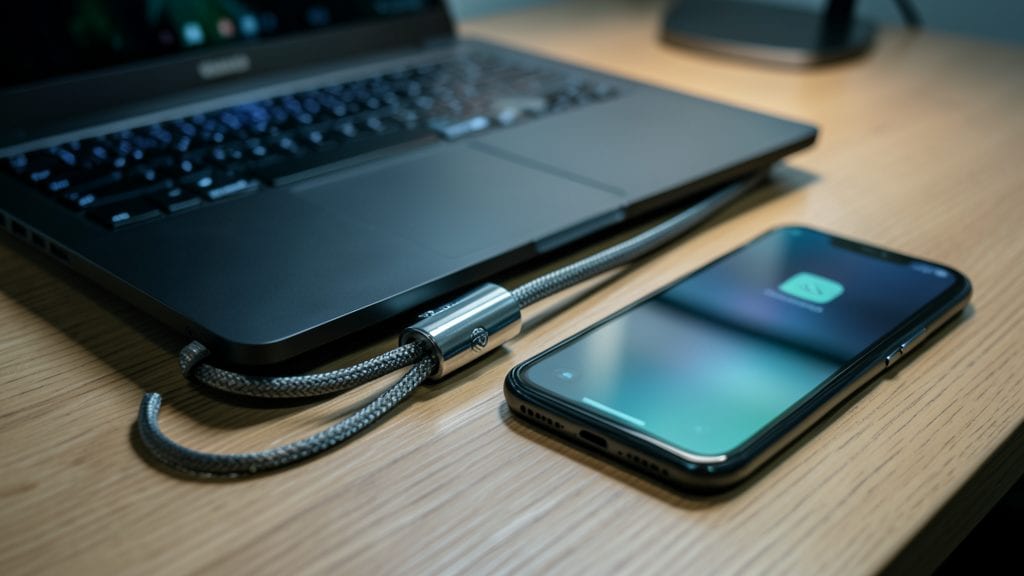
Your laptop or phone could be the weakest link in your security chain—even with strong passwords and encryption, physical access means game over. Cable locks (like the Kensington VeriMark) physically secure devices to desks or tables, while biometric authentication (fingerprint or facial recognition) adds an extra layer of protection beyond PINs.
For extra privacy, screen privacy filters (such as 3M Privacy Screen) block shoulder-surfing by limiting visibility to a narrow viewing angle. These filters are especially useful in coffee shops or shared spaces where sensitive data might be exposed. Pairing these tools with auto-lock settings ensures devices stay secure when unattended.
Freelancers, contractors, and anyone working in public spaces will benefit most from this zero-config, hardware-based security. It’s the simplest way to stop opportunistic theft or unauthorized access before it happens. 💪
Regularly Back Up Critical Data
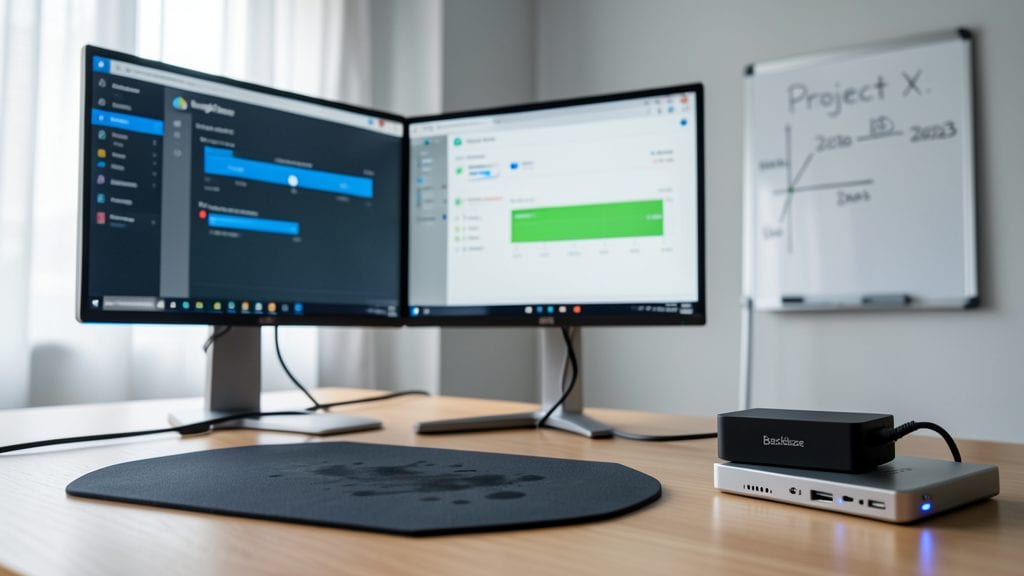
Ransomware attacks and accidental deletions can wipe out years of work in seconds—but you can fight back with automated backups. Services like Backblaze or Google Drive sync critical files in real-time, while external drives offer offline redundancy for peace of mind.
Backblaze charges just $7/month for unlimited cloud storage with continuous backup—no manual effort required. For local backups, Western Digital My Passport drives combine 2TB+ capacity with hardware encryption for extra security. Test restores monthly to ensure backups work when you need them most.
This is your last line of defense against cybercriminals. Freelancers, developers, and remote teams with irreplaceable files should prioritize this—because no antivirus can recover your data after a ransomware attack. ⚡
Monitor and Restrict App Permissions
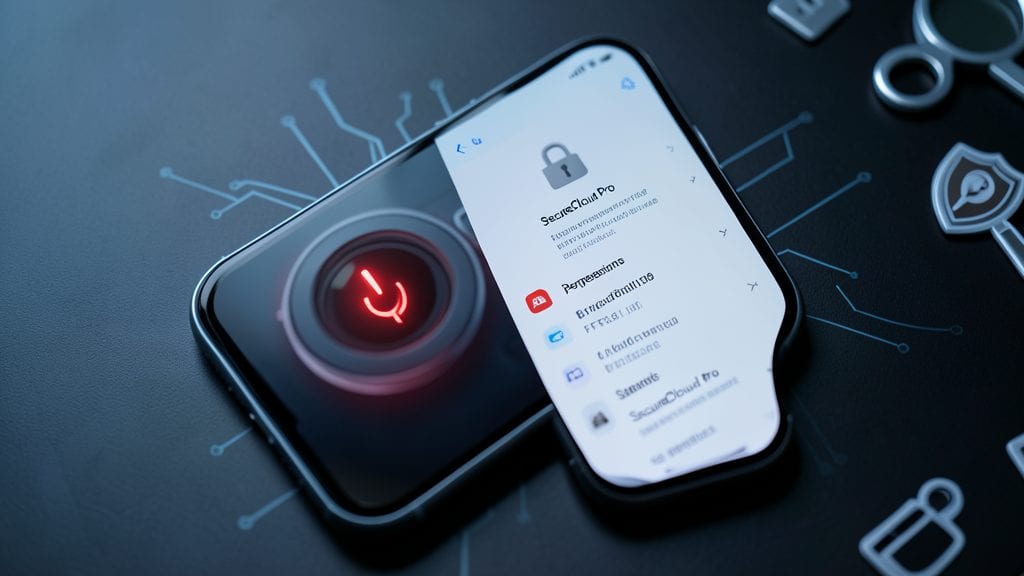
Many apps request access to your camera, microphone, or contacts without a clear need—leaving your data vulnerable to misuse or breaches. A simple audit of permissions can block spyware, reduce tracking, and stop apps from snooping on your activity.
On Android, head to Settings > Apps > [App Name] > Permissions to revoke access to unused features like location or storage. On iOS, go to Settings > Privacy & Security to disable permissions for individual apps. Tools like Exodus Privacy (Android) or App Privacy (iOS) scan for suspicious permission requests automatically.
Remote workers handling sensitive data—especially in finance or healthcare—should treat this as a non-negotiable monthly check. Even social media apps often request more access than necessary. ⚡