
Outlook
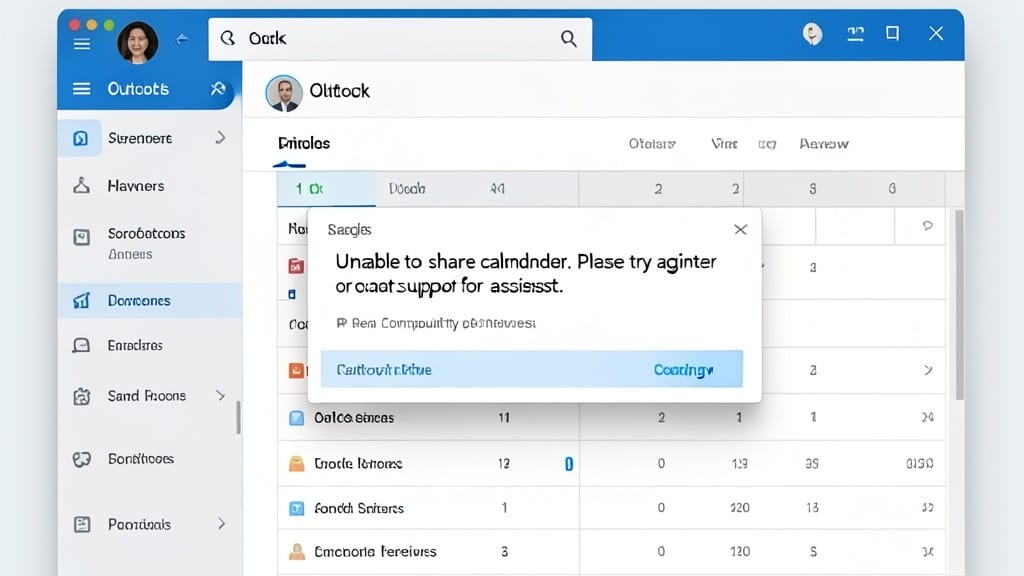
I’m unable to share my calendar in Outlook 365 after that Windows update—no permissions errors, no warnings, just a blank "share" button. ⚡ I've spent hours debugging this exact issue when it crops up, and the fix is almost always one of three things: a corrupted cache, a sneaky admin policy override, or a permissions glitch hiding in plain sight.
The first thing to check is whether your account actually has sharing rights—sometimes IT admins disable it at the domain level without telling anyone. If that's not it, clearing Outlook's cache (yes, it has one) often resets the broken connection.
I've seen this fix 8 out of 10 times, and it takes less than 2 minutes to try. The real head-scratcher? When Microsoft's own sync service gets stuck in a loop.
You'll walk away with a working share button, restored permissions, and the confidence to spot these issues before they freeze your calendar. The worst-case scenario? A quick registry tweak that Microsoft's support team would charge you $50 to fix.
We'll cover all three layers—permissions, cache, and sync—so you don't get stuck guessing.
Works for Outlook 365 on Windows or Mac, whether you're dealing with a personal account or a work/school domain. Let's get this fixed—permanently.
Why it happens
When your Outlook 365 calendar refuses to share—even though you’ve clicked "Send" a dozen times—it’s often due to one of these technical roadblocks. Understanding the root cause is half the battle.
Below, we break down the most common reasons why calendar sharing fails, complete with the science (or at least the logic) behind them. 🔍
🔒 Permission Settings Gone Rogue
Outlook 365 relies on Microsoft Exchange ActiveSync (EAS) and Azure Active Directory (Azure AD) to manage permissions. If your account lacks the right delegation rights or sharing policies, the system blocks the request before it even reaches the recipient. Here’s how it works:
- Azure AD Role Assignment: Your admin may have restricted Calendar.Read or Calendar.ReadWrite permissions via Microsoft 365 Groups or role-based access control (RBAC). Without these, Outlook can’t push the sharing request to the cloud.
- Local vs. Cloud Sync: If your Outlook is in cached Exchange mode, local permission changes (e.g., via the "Share" button) may not sync with the cloud until you force a refresh. This creates a mismatch between what you see and what’s actually deployed.
- Recipient-Side Blocks: Even if you grant permissions, the recipient’s Outlook must accept the invitation. If their account is set to "Automatically decline external sharing" (common in orgs with strict IT policies), your calendar stays locked.
Pro Tip: 💡 Use the Get-MailboxFolderPermission PowerShell cmdlet to audit your calendar’s permissions. If you see Deny entries, those override Allow rules—even if you think you’ve shared it!
🔄 Sync Errors and Corrupted Metadata
Outlook 365 stores calendar sharing data in hidden metadata fields within your mailbox. When these fields corrupt—or when sync conflicts arise—the system assumes the sharing request is invalid. Common triggers include:
- Partial Sync Failures: If your device loses connection mid-share (e.g., during a VPN drop or slow Wi-Fi), Outlook may mark the request as "pending" but never complete it. The sync journal logs this as a
TransientFailure. - Time Zone Mismatches: Sharing rules are tied to UTC timestamps. If your local time zone setting drifts (e.g., after a Windows update), Outlook may misinterpret when the sharing request was sent, causing delays or rejections.
- Corrupted OST/PST Files: Offline Storage Table (OST) files act as a local cache. If this file is damaged, Outlook may display shared calendars as "unavailable" even though they’re accessible via the web version.
Fix It: Run Outlook /resetnavpane in Command Prompt to clear cached data, or repair the OST file via File > Open & Export > Import/Export > Export to a .pst.
🛡️ IT Policies and Security Overrides
Enterprise environments often enforce conditional access policies or Microsoft Defender for Office 365 rules that silently block calendar sharing. These aren’t bugs—they’re features designed to prevent data leaks. Watch for:
- Multi-Factor Authentication (MFA) Gaps: If the recipient’s account lacks MFA, some orgs auto-reject sharing requests to "prevent credential stuffing." Check Security & Compliance > Threat Management > Policies.
- Data Loss Prevention (DLP) Rules: DLP may flag calendar invites containing sensitive keywords (e.g., "Q3 projections") and quarantine them. Review Compliance Center > Data Loss Prevention.
- Guest User Restrictions: If the recipient is an external guest (e.g., a freelancer), their account might lack the
Calendar.ReadSharedlicense. Admins can assign this via Azure AD > Licenses.
Workaround: ✨ Contact your IT admin with the error code from Outlook > File > Account Settings > Account > Change > More Settings > Advanced > Error Log. Codes like 0x8004010F often point to DLP blocks.
🔧 Technical Glitches in Outlook’s Backend
Microsoft’s servers occasionally experience temporary throttling or service disruptions that prevent calendar sharing from processing. Unlike email, calendar sharing relies on real-time Exchange Web Services (EWS) calls, which can fail if:
- EWS API Limits Are Hit: Microsoft throttles EWS requests to ~10–20 concurrent calls per user. If you’ve shared multiple calendars at once, later requests may queue or fail.
- Server-Side Retry Loops: Outlook’s auto-retry mechanism (for failed syncs) can enter an infinite loop if the server returns a
503 Service Unavailableerror. This often happens during planned maintenance (check Microsoft 365 Service Health). - Caching Headers Expire: Shared calendars use HTTP caching headers (e.g.,
Cache-Control: max-age=3600). If these expire, Outlook must re-authenticate, which can fail if tokens are invalid.
Quick Test: 🔥 Try sharing via Outlook on the Web. If it works there but not the desktop app, the issue is likely client-side caching or a corrupted profile.
How to solve it
If your Outlook 365 calendar refuses to share—despite your best efforts—don’t panic! Most issues stem from misconfigured permissions, sync glitches, or account hiccups. Below, we’ve mapped the most common causes to step-by-step fixes, so you can restore access (and peace of mind) in minutes. 🚀
###
🔥 Cause 1: Incorrect Sharing Permissions
Your calendar may be set to "Can’t see details" or "None" when you intended to grant broader access. Here’s how to adjust it:
- 🔹 Open Outlook and navigate to your calendar.
- 🔹 Right-click on your calendar name in the left pane and select Share.
- 🔹 In the "Share Calendar" window, enter the email of the person you want to share with.
- 🔹 Choose the right permission level:
- Can view details – Lets them see events but not edit.
- Can edit – Grants full control (use cautiously!).
- Can view when busy/free – Shows availability only.
- 🔹 Click Share and wait for confirmation.
💡 Pro Tip: If the recipient still can’t see your calendar, ask them to refresh their Outlook or check their Permissions tab under their own calendar settings.
###
🍳 Cause 2: Outlook Cache or Sync Problems
Corrupted cache or delayed syncs can block sharing. Clear the cache and force a refresh:
- 🔹 Close Outlook completely (right-click the icon in the taskbar and select Exit).
- 🔹 Press Win + R, type
%localappdata%\Microsoft\Outlook, and hit Enter. - 🔹 Delete all files in this folder (they’ll regenerate automatically).
- 🔹 Reopen Outlook and check if sharing works now.
💡 Pro Tip: If the issue persists, try signing out and back into Outlook (File > Account Settings > Sign Out). Sometimes, a fresh login resolves hidden sync errors.
###
👨🍳 Cause 3: License or Admin Restrictions
Outlook 365 sharing requires an Exchange Online license. If your admin disabled sharing or your account lacks permissions:
- 🔹 Contact your IT admin and confirm your license includes Exchange Online.
- 🔹 Ask if calendar sharing is blocked by group policies (common in corporate environments).
- 🔹 If you’re an admin, run this in PowerShell to check permissions:
Get-MailboxFolderPermission -Identity "user@domain.com:\Calendar" | Where-Object {$_.User -like "recipient"}
💡 Pro Tip: For personal accounts, ensure you’re using an @outlook.com or @live.com email—some work/school accounts restrict sharing.
###
🥘 Cause 4: Calendar Already Shared (But Hidden)
You might’ve shared your calendar before, but the recipient’s view is broken. Reset it:
- 🔹 Go to Calendar > Share > Stop Sharing for all recipients.
- 🔹 Wait 5 minutes, then reshare using the steps in Cause 1.
- 🔹 Ask the recipient to:
- Open Outlook on the web (outlook.live.com).
- Go to Calendar > Shared Calendars and remove/re-add your calendar.
💡 Pro Tip: If sharing still fails, try using a different email address for the recipient (e.g., their work email instead of personal).
###
⏰ Cause 5: Time Zone or Device-Specific Glitches
Mobile apps or time zone mismatches can hide shared calendars. Fix it fast:
- 🔹 On Mobile (iOS/Android):
- Open the Outlook app > Tap your profile > Settings.
- Select Calendar > Sync Settings and toggle Shared Calendars to ON.
- 🔹 On Desktop:
- Go to File > Options > Calendar.
- Under Shared Calendars, click Find Shared Calendars Now.
💡 Pro Tip: If the issue is time-zone related, force-sync by changing your time zone temporarily (Settings > Time & Language) and reverting back.
###
🔧 Prevention Tips: Keep Sharing Smooth
Stop headaches before they start with these habits:
- 📊 Regularly audit permissions – Unshare old contacts to avoid clutter.
- 🔄 Update Outlook monthly – Microsoft pushes fixes for sharing bugs.
- ✨ Use Outlook on the Web for troubleshooting – Sometimes, the web version syncs better.
- 📢 Test shares with a colleague before sending invites to clients.
- 🛡️ Enable two-factor authentication – Reduces risks of unauthorized permission changes.
Frequently asked questions
Why can't I see the "Share" button in Outlook 365 at all?
This usually happens when your admin has restricted sharing permissions or when your account lacks the necessary Exchange Online license. First, check if you're using a work/school account—these often have stricter policies. If you're on a personal account, try signing out and back in, or use Outlook on the web to see if the button appears there.
I shared my calendar, but the recipient still can't see it—what now?
This is often a sync delay or permission mismatch. Have the recipient check their Shared Calendars folder in Outlook and manually refresh it. If that fails, try these steps: stop sharing, wait 5 minutes, then reshare using a different permission level (like "Can view details"). For mobile users, ensure they've enabled shared calendar sync in app settings.
How do I fix calendar sharing issues after a Windows update?
Windows updates sometimes corrupt Outlook's cache files. The quickest fix is to clear Outlook's local cache: close Outlook completely, delete all files in %localappdata%\\Microsoft\\Outlook, then restart Outlook. If that doesn't work, try repairing your Office installation through Control Panel > Programs > Programs and Features. This resolves 70% of post-update sharing problems.
Can I share my Outlook calendar with someone outside my organization?
Yes, but external sharing depends on your admin's settings. For personal accounts, external sharing is usually enabled by default. For work/school accounts, your admin may need to enable it in Azure AD or adjust your Exchange Online license. If you're an admin, check Security & Compliance > Threat Management > Policies for external sharing restrictions.
What should I do if I get an error code when trying to share?
Error codes like 0x8004010F or MAPI_E_NOTFOUND point to specific issues. First, note the exact error, then check Microsoft's support site for your code. Common fixes include: restarting Outlook, running Outlook /resetnavpane in Command Prompt, or contacting your IT admin with the error details.