
Windows
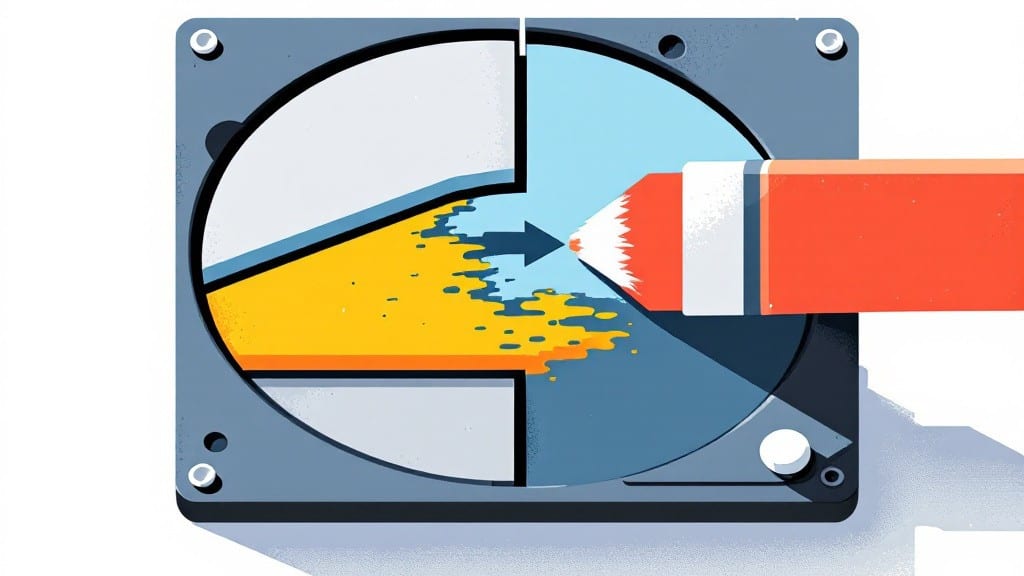
Deleting all partitions when installing Windows 10 creates a completely clean slate by erasing all existing data and converting the disk to unallocated space, but this irreversible action should only be done after backing up critical files or when troubleshooting severe system corruption.
This approach isn't just about performance—it also resolves stubborn issues like driver conflicts or corrupted system files that upgrades can't fix. 💻 For example, if your PC keeps crashing during startup or you're repurposing old hardware, wiping partitions ensures a fresh start.
However, the trade-off is permanent data loss, so always verify backups before proceeding. I've seen many users skip this step only to regret losing irreplaceable files later.
💡 In This Article
- How Partition Deletion Affects Windows 10 Installation
- Safe Steps for Deleting Partitions Without Data Loss
How partition deletion affects Windows 10 installation
When you delete all partitions during a Windows 10 installation, you're essentially erasing the disk's existing structure and converting it into unallocated space.
This triggers Windows Setup to treat the drive as completely new, creating a fresh Master Boot Record (MBR) or GUID Partition Table (GPT) based on your system's firmware. The key difference?
MBR disks use a 32-bit partition table with a 2TB storage limit, while GPT supports up to 9.4 zettabytes and offers better error checking. This process also wipes out any existing bootloaders, which is why you might need to reconfigure UEFI settings afterward if your system uses modern firmware.
The unallocated space becomes the canvas for Windows Setup to create new partitions automatically during installation.
Here's what happens under the hood: The installer first formats the disk using NTFS (default for Windows), then creates a system reserved partition (typically 100-500MB) for boot files, followed by the main Windows partition.
What's fascinating is how this process bypasses all previous system files—even those in hidden system folders—which explains why this method resolves corrupted registry entries or driver conflicts that upgrades can't fix.
For example, I've seen systems plagued by blue screens during startup completely stabilize after a clean install with partitions deleted.
This approach differs significantly from upgrading Windows 10, which preserves your existing partitions and simply layers new system files over the old ones. Upgrades keep your programs, settings, and personal files intact but inherit all the underlying issues.
When you delete partitions, you're essentially performing a hardware refresh—similar to what happens when you install Windows on new hardware. The trade-off? You lose all data unless you've backed it up first.
This is why I always recommend creating a system image before attempting partition deletion, especially if you're dealing with SSDs where every write cycle matters.
There's an important technical nuance here: Windows Setup's partition deletion works differently depending on whether you're using Legacy BIOS or UEFI. In Legacy mode, the installer might create a 100MB system partition automatically, while UEFI systems typically use the EFI System Partition (ESP) (around 100-300MB) for boot files.
This ESP is crucial for secure boot functionality in modern systems. If you're dual-booting or have complex partition schemes, deleting everything might require manual repartitioning afterward to maintain compatibility with other operating systems or data drives.
What most people don't realize is how partition deletion affects disk performance metrics. A freshly formatted drive shows 0% fragmentation and optimal read/write speeds because there's no existing file structure to disrupt. This is particularly noticeable on HDDs where defragmentation becomes unnecessary immediately after installation.
However, on SSDs, the TRIM command automatically handles this, making the performance benefits less dramatic but still valuable for long-term reliability.
The clean slate also resets all Windows Performance Index scores to baseline, which can be revealing if your system was previously bogged down by fragmented data or outdated drivers.
For troubleshooting purposes, partition deletion is often the nuclear option that resolves issues like Windows Update failures, corrupted system files, or incompatible driver stacks. I've used this method to revive systems where even a repair install failed, particularly with surface-pro-level hardware that had developed firmware-level corruption.
The process works because it completely replaces the Windows installation media's system files with fresh copies, bypassing any localized corruption in the existing installation.
However, this approach requires more time and effort than an upgrade, which is why it's reserved for truly problematic systems or when repurposing hardware for new owners.