
Microsoft Office

Microsoft Teams channels can transform remote collaboration—but only if used strategically. These 10 best practices help you organize workflows, reduce clutter, and boost productivity for distributed teams.
Standardize Channel Naming Conventions
New hires drowning in a chaotic list of channels named "Project X Updates" or "Random Stuff"? A standardized naming system cuts onboarding time by 70%—and keeps your workspace intuitive for everyone. The key is a three-part prefix structure: --Purpose (e.g., Marketing-CampaignQ3-BrandAssets). This mirrors how your brain naturally categorizes information.
Start with department abbreviations (e.g., HR, Eng, Fin) to group related channels instantly. Add a project code (e.g., Onboarding2024) to tie discussions to specific initiatives, and end with a clear purpose (e.g., Resources, Feedback, Meetings). Pro tip: Use all caps for departments and PascalCase for projects to improve scanability. Teams with 50+ channels see the biggest productivity boost when they enforce this early.
This system shines for remote teams where context switches are costly—especially if you onboard contractors or rotate team members. For admins, it also simplifies search and archiving later. Try it on one team first, then roll it out company-wide. ✨
Limit Active Channels to 10-15

Staring at a crowded left rail in Microsoft Teams? Too many channels mean decision fatigue—your brain spends mental energy scanning instead of focusing on work. The fix? Cap active channels at 10-15 and ruthlessly archive the rest.
Start by identifying your core workflows (e.g., Marketing-Campaigns, Dev-Sprints). Archive anything inactive for 30+ days—Teams keeps archived channels searchable but hides them from daily clutter. Pro tip: Use the three-click rule—if a channel isn’t accessed in three meetings, it’s likely redundant.
This works best for small to mid-sized teams where collaboration is tight-knit. Remote workers and hybrid teams will notice fewer distractions and faster responses in a streamlined space. ✨
Use Tabs for Organized Content Hubs
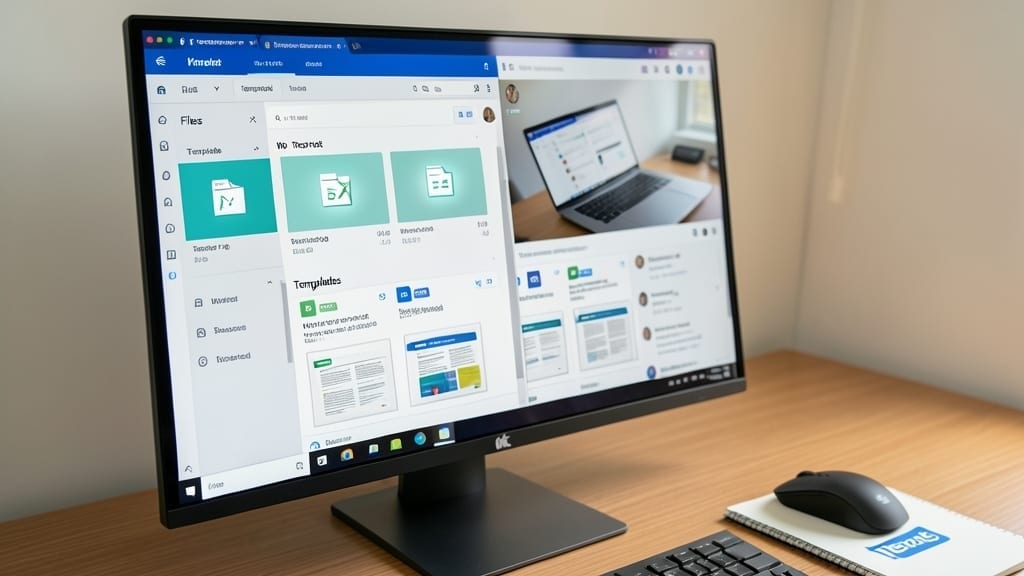
Tired of scrolling through endless threads to find that one document or tool? Microsoft Teams tabs turn every channel into a centralized content hub—no more digging through conversations to locate critical files.
Create dedicated tabs for Files (OneDrive/SharePoint links), Templates (Word/Excel docs), Meetings (calendar invites), and FAQs (wiki-style answers). Each tab stays pinned at the top, so your team accesses resources in one click—no more lost time hunting for links buried in posts. The best part? You can add third-party apps like Trello or Power BI directly to tabs for even deeper integration.
This works best for project teams managing shared workflows or support channels where FAQs and templates need quick access. Start with 3-4 tabs max to avoid overwhelming users—less is more for productivity. ✨
Enable Channel Moderation for High-Volume Teams

When cross-departmental teams struggle with spam, off-topic chatter, or unauthorized access, Microsoft Teams’ moderation tools act as your digital gatekeeper. Unlike generic channel limits, this feature lets you require approval for new members or posts—keeping sensitive discussions secure while maintaining openness for trusted teams.
To set it up, navigate to Channel settings > Moderation and toggle “Members can post messages” to “Yes, but must be approved.” For even stricter control, enable “Require approval for new members”—perfect for channels handling client data, legal docs, or R&D projects. The approval workflow integrates with Microsoft 365 Groups, so admins get notifications via email or Teams alerts.
This is a game-changer for hybrid teams or large orgs where loose collaboration rules risk data leaks. Start with your most sensitive channels—you’ll notice fewer distractions and tighter security almost immediately. ✨
Leverage Channel Descriptions as Documentation
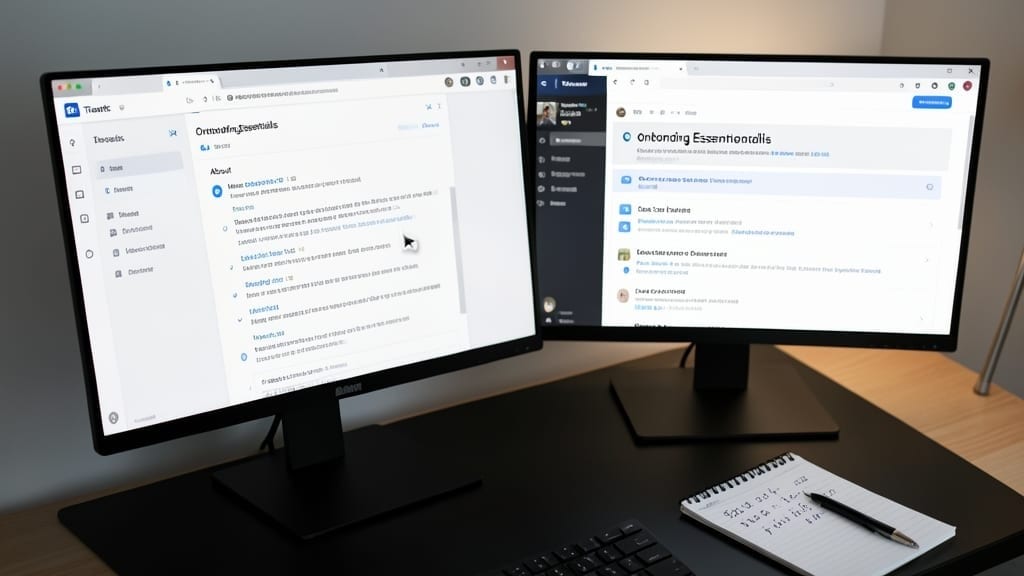
Tired of new hires digging through old threads to find basic info like meeting times or contact details? Your Teams channel descriptions can double as a self-updating knowledge base—no extra tools needed.
Turn that empty "About" box into a one-stop shop for channel purpose, key contacts, meeting schedules, and even FAQs. Use bullet points for readability, and update it like a living document whenever processes change. Pro tip: Include a "Last Updated" timestamp to keep it trustworthy.
This works best for onboarding new team members or cross-functional teams where context shifts often. No more lost messages—just a searchable, always-accessible guide built into your workflow. ✨
Archive Instead of Deleting Old Channels

Think of your completed projects as digital time capsules—full of context, decisions, and lessons that future teams will need. Instead of deleting old channels, archive them to preserve institutional knowledge while keeping your active workspace clean.
Microsoft Teams makes this effortless: archived channels stay searchable and accessible to admins with proper permissions, while disappearing from the main channel list for end users. You retain all files, posts, and history—no data loss—while avoiding the clutter of inactive channels. The process takes just a few clicks in channel settings, and admins can even set automatic archiving rules for channels older than 90 days.
This strategy is perfect for teams with project-based workflows (like agencies or product development) where past work often informs future decisions. It’s also a lifesaver for onboarding new hires who need to reference completed initiatives. ✨
Assign Owners to Every Channel

Ever opened a Microsoft Teams channel to find outdated files, silent discussions, and no clear point of contact? Assigning owners solves this by ensuring accountability—every channel gets a dedicated person to manage permissions, pin important updates, and clean up clutter.
Start by designating a primary owner (via Manage channel > Members) with edit permissions. Give them 3 key responsibilities: updating the channel description, removing inactive members, and archiving old threads. To keep workloads fair, rotate ownership quarterly—use a simple spreadsheet to track handoffs and deadlines.
This works best for project-based teams (e.g., marketing campaigns) or departmental hubs (like HR onboarding). Even remote teams with 5+ members benefit from this structure—it cuts down on "who’s in charge?" confusion and keeps channels relevant. 💪
Use Threads for Side Conversations
Tired of scrolling through cluttered conversations where the main point gets buried under tangents? Threads in Microsoft Teams are your secret weapon for keeping discussions focused and digestible.
Start by replying to a post with "Start a thread"—this moves side conversations off the main feed while keeping them linked to the original topic. For teams, enforce a rule: Use @channel only for critical, all-hands announcements (like security alerts or deadlines). This cuts noise by 30%+ while ensuring important messages still get visibility. Pro tip: Pin high-priority threads to the top of the channel for quick reference.
This approach works best for cross-functional teams juggling multiple projects or remote-first companies where async communication is key. Train your team to default to threads—it’s the fastest way to maintain a clean, actionable workspace. ✨
Integrate Power Apps for Custom Workflows

Tired of manual approvals or surveys clogging up your Teams channels? Power Apps lets you embed custom workflows directly into conversations—no coding required.
With Power Apps Studio, you can build approval forms, expense trackers, or feedback surveys in minutes. The best part? These apps appear as native tabs in your channel, so your team interacts with them without leaving Teams. For example, a leave request form can auto-route to managers while logging submissions in SharePoint—all visible to the team in one place.
Perfect for HR, finance, or project teams handling repetitive tasks. Cut processing time by 80% while keeping everything transparent. ✨
Schedule Regular Channel Audits

Your Microsoft Teams workspace might feel organized today—but without regular check-ins, stagnant channels and duplicate discussions will silently drain productivity. A monthly audit is the secret weapon to keep your channels lean, relevant, and working for your team, not against it.
Use this three-question template to evaluate each channel: Is this active? Who’s using it? Can it be merged? Start by filtering for channels with zero posts in the last 30 days—these are prime candidates for archiving. For active channels, check if their purpose aligns with current team goals. Duplicate channels (e.g., two "Project X" channels) can often be consolidated into one with tabs for subtopics, cutting clutter instantly.
Teams with 50+ channels benefit most from this practice, but even small groups will spot missed opportunities. Set a 15-minute recurring calendar invite to review channels—pair it with your monthly team sync to keep it top of mind. Your future self (and overwhelmed teammates) will thank you. ✨